- Google crawled the page and decided not to index it for now; Google says there's no need to resubmit it.
- Discovered – currently not indexed is different: Google hasn't crawled the page yet.
- Check the last crawl date first: changes made after it haven't been seen.
- The usual causes are thin or overlapping content and weak internal links, rarely crawl budget.
- Improve, merge or remove each page, then request indexing once and wait a few weeks.
“Crawled – currently not indexed” is a status in Google Search Console’s Page indexing report. It means Googlebot visited the page, but Google decided not to add it to its index for now, so it can’t appear in search results. Google’s own description is short: the page “was crawled by Google but not indexed. It may or may not be indexed in the future; no need to resubmit this URL for crawling.” If you’ve searched for “crawled currently not indexed” because your own pages show it, this guide explains what the status means, how to check it properly, the real reasons behind it and the step-by-step fix, using Google’s documentation as the source throughout (checked on 12 October 2026).
It isn’t a penalty, and it isn’t always a problem. But when an important page sits in this list for weeks, Google is telling you it didn’t see enough reason to index that page yet. If you’re new to Search Console, start with our Google Search Console guide; for how crawling and indexing work in general, see SEO basics.
What “Crawled – currently not indexed” means
Google works in stages. It crawls a page (downloads it), then indexes it (analyses the content and stores it in its index), and only indexed pages can be shown in results. This status means the first stage worked and the second didn’t happen. Your server answered, nothing blocked Google, and Google still chose to leave the page out.
Google is open about this being normal. Its explanation of how search works says “indexing isn’t guaranteed; not every page that Google processes will be indexed,” and lists low-quality content as a common reason. The Page indexing report’s own guide adds: “Don’t expect every URL on your site to be indexed.” So the question is never “how do I get every URL indexed?” but “are the pages that matter indexed, and if not, why?”
Two more things the status tells you:
- The decision can change. “May or may not be indexed in the future” means Google may revisit the page and index it later, especially if it changes.
- Resubmitting alone won’t help. Google says there’s no need to resubmit the URL. Sending the same page again without changing anything gives Google no new reason to index it.
Crawled vs Discovered – currently not indexed
The Page indexing report has a similar-looking status, “Discovered – currently not indexed”. The difference matters because the fixes differ:

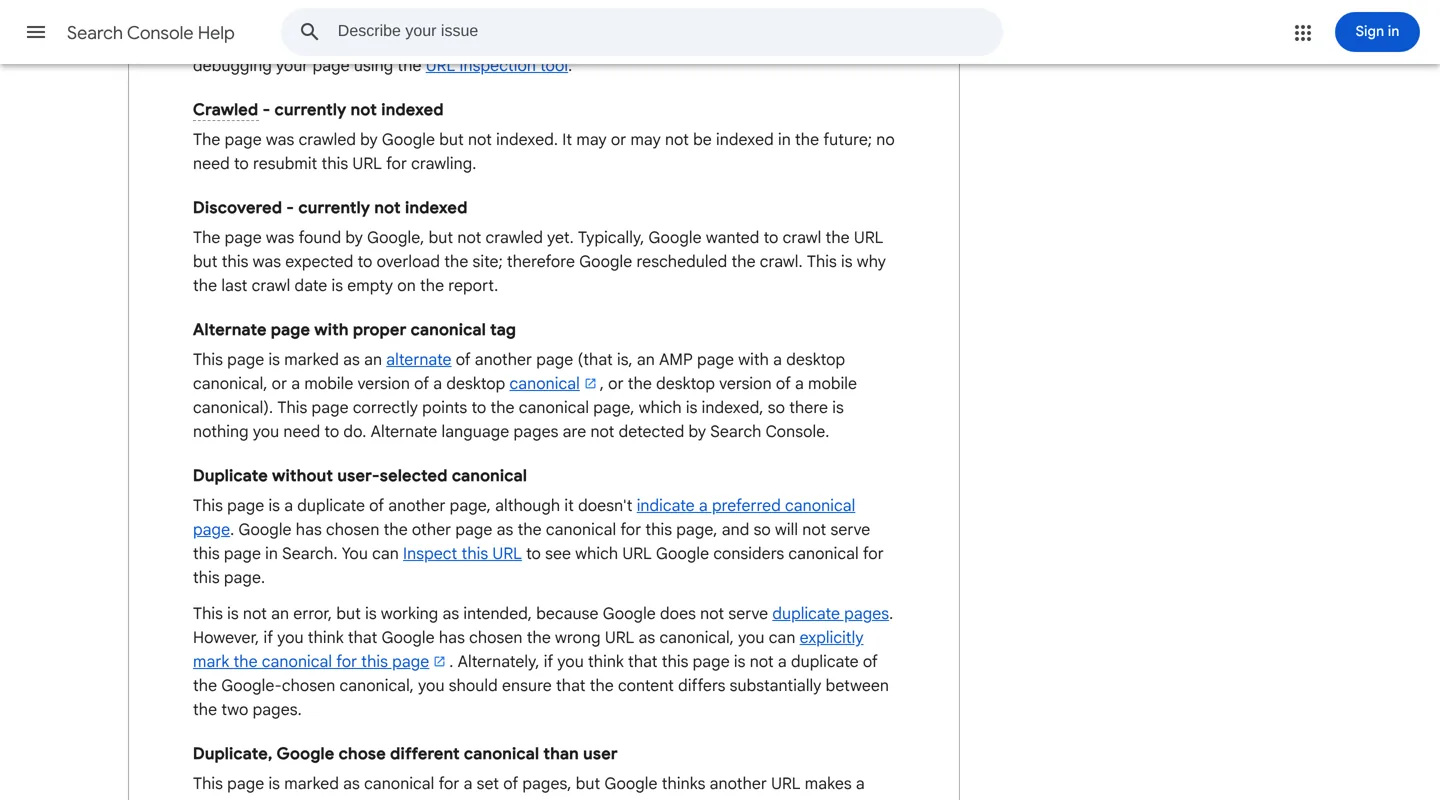
- Discovered – currently not indexed: Google found the URL (through a link or sitemap) but hasn’t crawled it yet. Google says it typically wanted to crawl the URL, but expected that to overload the site, so it rescheduled; that’s why the last crawl date is empty. Internal links, a clean sitemap and a responsive server are the usual answers.
- Crawled – currently not indexed: Google has already fetched the page and has a last crawl date. The issue is the decision after the crawl, so the fix is usually about the page itself: its value, how much it overlaps other pages and how well it’s linked.
The rest of this guide is about the crawled status.
How to check the status properly
Before changing anything, confirm which pages are affected, whether they matter and whether Google has seen their current version.
1. Start in the Page indexing report
Open Indexing → Pages in Search Console and click Crawled – currently not indexed in the “Why pages aren’t indexed” table. You’ll see a chart of affected pages over time and a list of example URLs with their last crawl date. Google notes the list shows up to 1,000 examples and isn’t guaranteed to include every affected URL.

Use the filter above the chart to switch from “All known pages” to All submitted pages (the URLs in your sitemaps). That removes URLs you never meant to be indexed, such as feed addresses, and leaves the ones you actually care about. On WordPress sites I often find feed URLs (ending in /feed/) and media attachment pages in the unfiltered list; they don’t need to be indexed.
2. Inspect each important URL
Click the inspect icon next to a URL, or paste it into the search bar at the top. The URL Inspection result shows:
- Last crawl: the date Google last fetched the page. Everything in the result is based on that version.
- Referring page and Sitemaps: how Google found the URL. “No referring sitemap” means the URL isn’t in a sitemap you submitted.
- User-declared canonical and Google-selected canonical: if Google has chosen another URL, the page is being treated as a duplicate, and you’d normally see a “Duplicate” status instead.
3. Check the date
Compare the last crawl date with the date you last changed the page. If you improved the page after that date, Google hasn’t seen the new version, and the status says nothing about it yet. Google’s own troubleshooting advice for reports that seem out of date is the same: check the crawl date first.
4. Run a live test
Click Test live URL. It confirms Google can fetch and render the page now, and View tested page shows a screenshot of what Google sees, which catches pages whose main content only loads after a click or fails to render. Remember its limits: Google says a passing live test doesn’t mean the page will be indexed, because the page “cannot be a duplicate of another indexed page” and its “quality must be high enough to warrant indexing”, and the live test checks neither.
5. Ask whether the page should be indexed at all
Be honest here. Thank-you pages, internal search results, near-empty tag archives and old announcements may be correctly left out. The fix below starts by sorting pages into keep, merge and remove.
Why Google crawls a page but doesn’t index it
Search Console doesn’t give a reason for this status, so nobody outside Google can tell you the exact cause for a single URL. What Google’s documentation does say is what it needs before it indexes a page, and those points line up with the causes I see most often.
Thin or unhelpful content
This is the most common cause. A short post that repeats what every other page says, a product page with only a manufacturer description, or a “best X” list without real assessment gives Google little reason to store another copy of the same information. Google’s guide to creating helpful, people-first content asks whether a page “provide[s] original information, reporting, research, or analysis” and “substantial value when compared to other pages in search results”. A page that can’t answer yes to those questions is a likely candidate for this list.
Duplicate or near-duplicate pages
During indexing, Google groups pages with similar content and picks one as the canonical to show; the rest are treated as alternates. Exact duplicates usually get their own statuses (“Duplicate without user-selected canonical” and similar), but two articles on your own site that answer the same question with slightly different words compete with each other, and Google may see little point in indexing both. Blogs that have published for years often have several posts on nearly the same topic; giving each URL one distinct search intent prevents this.
Weak internal links
Google says it uses links “as a signal when determining the relevancy of pages and to find new pages to crawl.” A post that only appears in the archive and has no links from related articles (an orphan page) looks unimportant compared with pages your site links to often. The Page indexing guide also recommends making sure every page can be reached through your site’s navigation from the home page.
Site-wide quality signals
Google’s crawl budget guide says crawl demand depends on a site’s “size, update frequency, page quality, and relevance”, and its recrawl guide says its systems “prioritize the fast inclusion of high quality, useful content.” In practice, a site with many weak pages tends to see more of them left out, and improving or removing the weakest pages helps the rest. That’s an observation, not a Google promise, but it matches what Google’s documentation describes.
Pages that look empty or broken
If a page returns a normal 200 status but looks like an error or an empty page, Google may classify it as a soft 404, a separate status. Pages that are nearly empty for other reasons, such as a category with one post or content that fails to render, can end up not indexed too. The live test’s screenshot shows whether Google sees your real content.
Crawl budget is rarely the cause
“Crawl budget” is often blamed, but Google’s guide on it is written for large sites, roughly 1 million or more pages, or 10,000 or more pages that change daily. A typical blog isn’t in that group, and a page with this status has already been crawled anyway. For small and medium sites, Google says keeping your sitemap up to date and checking the Page indexing report regularly is enough.
The page is simply new
Sometimes a new page is crawled first and indexed a little later. If a page was published in the last week or two, check again before changing anything.
How to fix crawled currently not indexed pages
The fix is a short process you repeat for each page that matters. It’s the approach I use on this site’s older posts, and on client sites.

Step 1: List the pages and sort them
Export the examples with the report’s export button and add a column for what each page is worth: does it get impressions in the Performance report, does it earn links, would you be happy for a new reader to land on it? Work on the valuable ones first.
Step 2: Decide to keep, merge or remove

| Situation | Action | Why |
|---|---|---|
| Unique topic, useful but thin | Improve the page and keep the URL | The address may already have links and history |
| Two or more pages answer the same question | Merge into the strongest page, 301-redirect the others | Google treats a redirect as a strong signal of the canonical page |
| Visitors need the page, searchers don’t (thank-you, login, internal search) | Add a noindex rule | The page keeps working but stays out of results |
| No value, no traffic, no links, no replacement | Delete it so it returns 404 or 410 | Google says a 404 isn’t a problem for a page removed without a replacement |
| No value on its own, but it has links or visits | 301-redirect it to the closest relevant page | Visitors and links aren’t lost |
Use noindex, not robots.txt, to keep a page out of Google. Google explains that if robots.txt blocks a page, Googlebot never sees the noindex rule, and the page can still appear in results if other pages link to it. Your SEO plugin, such as Rank Math or Yoast SEO, lets you set noindex on any page.
Step 3: Improve the page you’re keeping
- Answer the search completely. Look at the queries the page already gets in the Performance report and make sure the page answers them better than the pages ranking now.
- Add what only you can add: your own tests, screenshots, examples, numbers you measured, a clear recommendation.
- Remove filler and overlap with your other posts, and link to them for the details they cover.
- Fix the basics from our on-page SEO checklist: a descriptive title, clear headings, images with alt text, structured data where it fits.
Don’t just change the date. Google’s helpful content guide lists “changing the date of pages to make them seem fresh when the content has not substantially changed” as a warning sign.
Step 4: Link to it from related pages
Add links to the page from two to five related articles that are already indexed, with anchor text that describes the topic, and from a hub or category page if it belongs to a topic group. Our guides to an internal linking strategy and topic clusters and pillar pages explain how to do this across a whole site. A crawler such as Screaming Frog counts the internal links to every page and, when you crawl your sitemap too, lists orphan pages.
Step 5: Keep it in your sitemap
Make sure the page is in the sitemap you submitted, and that the sitemap lists only pages you want indexed: no redirects, noindexed URLs or duplicates. Google recommends a sitemap with updated <lastmod> dates as the best way to tell it about many new or updated pages. After you update the page, open your sitemap and check that it shows the new modified date; the WordPress SEO tutorial shows where to find the sitemap on WordPress.
Step 6: Request indexing once
When the improved page is live, inspect the URL, click Test live URL to confirm Google can see the new version, then click Request indexing. Do this once per page. Google says indexing usually takes a day or so but can take a week or two, that a request doesn’t guarantee indexing, and that asking again for the same URL won’t get it crawled faster.
Step 7: Validate and wait
When you’ve worked through the pages you care about, you can click Validate fix on the issue’s details page to have Google recheck the listed URLs. Google says validation typically takes up to about two weeks. You don’t have to validate: Google updates the report whenever it recrawls the pages anyway.
What not to do
- Don’t click Request indexing on dozens of unchanged pages. There’s a daily limit, repeat requests don’t speed things up, and Google says there’s no need to resubmit these URLs. Change the page first.
- Don’t use the Indexing API or “instant indexing” services for blog posts. Google’s Indexing API “can only be used to crawl pages with either JobPosting or BroadcastEvent embedded in a VideoObject”, that is, job listings and livestreams. Google adds that all submissions go through spam detection and abuse “may result in access being revoked.”
- Don’t block the pages in robots.txt to hide them. It stops Google seeing a noindex rule and doesn’t reliably keep them out of results.
- Don’t delete large numbers of pages to look “fresh”. Google’s guide says adding or removing lots of content to make a site seem fresh won’t help rankings. Remove pages because they have no value, and redirect the ones with links or visitors.
- Don’t mass-produce rewrites. Rewording a thin page with an AI tool, without adding information, leaves it thin. Google’s guidance warns against “extensive automation to produce content on many topics.”
- Don’t chase every URL. Feeds, attachment pages, filtered views and old tag pages can stay out of the index.
How long to wait
There’s no fixed time, but Google’s documentation gives the ranges:
- After Request indexing: usually a day or so, sometimes a week or two.
- For crawling in general: “anywhere from a few days to a few weeks.”
- For Validate fix: typically up to about two weeks, sometimes longer.
Google says recrawling can take from a few days to a few weeks, so after improving a page and requesting indexing once, give it a few weeks before changing it again. If it’s still not indexed after a real improvement and new internal links, look harder at whether it overlaps another page; merging is often the answer.
When you’re done, add the improved pages to your regular routine: our Search Console guide has a simple weekly and monthly check. If you’d rather have someone audit and fix indexing across a whole site, my agency, A Digital Motive, does this work for clients.
Questions people ask
Is Crawled – currently not indexed an error?
No. It's a status, not an error or a penalty. Google crawled the page and chose not to index it for now. It only needs fixing if the page is one you want people to find in Google.
What is the difference between Crawled and Discovered – currently not indexed?
Discovered means Google knows the URL but hasn't crawled it yet, so the last crawl date is empty. Crawled means Google has fetched the page and decided not to index it, which usually points to the page itself.
Should I click Request indexing for every affected page?
No. Google says there's no need to resubmit these URLs, there's a daily limit, and repeat requests don't speed things up. Improve the page first, then request indexing once.
How long does it take for a page to be indexed after fixing it?
Google says a request for indexing usually takes a day or so but can take a week or two, crawling can take a few days to a few weeks, and fix validation typically up to about two weeks. Indexing is never guaranteed.
Can an indexing API or instant indexing plugin fix it?
Not for blog posts. Google's Indexing API is only for pages with JobPosting or BroadcastEvent structured data, and Google warns that abusing it may get access revoked.
Should I delete pages that are crawled but not indexed?
Only pages with no value, visitors or links. Improve useful pages, merge overlapping ones with a 301 redirect, and noindex pages visitors need but searchers don't.
Is crawl budget the reason my pages aren't indexed?
Rarely for small sites. Google's crawl budget guide is for very large sites, about a million pages or more, or 10,000+ pages changing daily, and a page with this status has already been crawled.
Sources
- Page indexing report (Search Console Help) support.google.com · checked October 12, 2026
- URL Inspection tool (Search Console Help) support.google.com · checked October 12, 2026
- In-depth guide to how Google Search works (Search Central) developers.google.com · checked October 12, 2026
- Creating helpful, reliable, people-first content (Search Central) developers.google.com · checked October 12, 2026
- Ask Google to recrawl your URLs (Search Central) developers.google.com · checked October 12, 2026
- Optimize your crawl budget (Search Central) developers.google.com · checked October 12, 2026
- How to specify a canonical URL (Search Central) developers.google.com · checked October 12, 2026
- Block search indexing with noindex (Search Central) developers.google.com · checked October 12, 2026
- Link best practices for Google (Search Central) developers.google.com · checked October 12, 2026
- How HTTP status codes and network errors affect Google Search developers.google.com · checked October 12, 2026
- Indexing API Quickstart (Google for Developers) developers.google.com · checked October 12, 2026

Building websites since 2006: 500+ web projects of every size and $300K+ in website deals sold or brokered. Founder of A Digital Motive and DigiFlippers. I share the whole process here, plainly.
Founder of A Digital Motive and DigiFlippers