Some links on this page are affiliate links. If you buy through them I may earn a commission, at no extra cost to you. It never changes a rating. Read the disclosure
- WordPress.org is free software you host yourself; WordPress.com is a hosted service with a free plan that shows its ads.
- WordPress.org recommends PHP 8.3+, MySQL 8.0+ or MariaDB 10.11+, and HTTPS.
- Set permalinks to Post name before you publish, so your addresses never have to change.
- More than 75,000 free plugins exist; a new blog needs only a handful.
- Minor and security updates install automatically; back up before major updates.
This WordPress guide for beginners takes you from “what is WordPress?” to a working, safe website in eight steps, and links each step to the detailed tutorial on this site. You don’t need to code. You need about a weekend, a small budget for hosting and a domain, and a clear idea of what the site is for. Every fact here comes from WordPress.org’s own pages, checked in October 2026.
Use this page as your map. Read it once from top to bottom, then come back to the step you’re on and open its full guide.
What WordPress is, in plain words
WordPress is free, open-source software for building websites. You install it on a web server, log in to a dashboard, and add pages, blog posts, images and menus without writing code. Themes control how the site looks; plugins add features such as contact forms, SEO settings or online shops. WordPress is licensed under the GPL (version 2 or later), so you can use it for any site, personal or commercial, at no cost.
It’s also by far the most used website system. W3Techs, which surveys the web every day, reports that WordPress runs 40.1% of all websites and 58.6% of the websites whose content management system it can identify (October 2026). That size matters to a beginner: almost every host supports it, most problems already have an answer, and there’s a theme or plugin for nearly any job.
For the full background, read what WordPress is and how it works. If you’re still choosing between systems, WordPress and other CMS options compares it with the alternatives.
WordPress guide for beginners: the 8 steps
Here’s the whole journey on one screen. Each step below explains what to do, what to avoid and where to read more.

Step 1: Choose WordPress.org or WordPress.com
“WordPress” means two different things, and beginners mix them up all the time:
- WordPress.org is the free software. You download it (or your host installs it) and run it on hosting you pay for. You control everything: any theme, any plugin, your own ads and affiliate links. This is what most bloggers and businesses mean by “a WordPress site”.
- WordPress.com is a hosted service run by Automattic. You sign up and it handles hosting, updates and security for you. Its free plan shows WordPress.com ads to your visitors; the Personal plan removes them and costs $9 billed monthly or $4 a month billed yearly, with a free domain for the first year. Paid plans let you install plugins.

If you want to earn from your site with your own ads and affiliate links, or you want full control, choose WordPress.org with your own hosting. If you only want to try blogging for free first, read how to get a free WordPress blog for the honest trade-offs. Coming from another platform? WordPress vs Blogger and Showit vs WordPress compare the common alternatives.
Step 2: Get hosting that runs WordPress well
A self-hosted WordPress site needs a web host and a domain name. WordPress.org recommends that your host supports PHP 8.3 or greater, MySQL 8.0 or greater (or MariaDB 10.11 or greater), and HTTPS. Almost every mainstream host meets that today, so the real choice is about price, renewal cost, backups and support.
Start with what WordPress hosting is to understand shared, managed and cloud hosting. Then pick from the list that fits your budget:
- Best WordPress hosting: the overall ranking, with first-term and renewal prices.
- Cheap WordPress hosting: the lowest real cost for a new blog.
- Best managed WordPress hosting: for business sites that want the host to handle updates, backups and speed.
Most beginners start on shared hosting from hosts such as Hostinger or Bluehost and move to managed hosting like Kinsta once the site earns. Always compare the renewal price, not just the first-term offer.
Step 3: Install WordPress
On most hosts, installing WordPress is one click in the control panel, or the host installs it for you when you sign up. If yours doesn’t, you can download WordPress yourself from WordPress.org (version 7.1.3 at the time of writing) and run the five-minute installer. Our WordPress installation guide covers both ways, step by step.
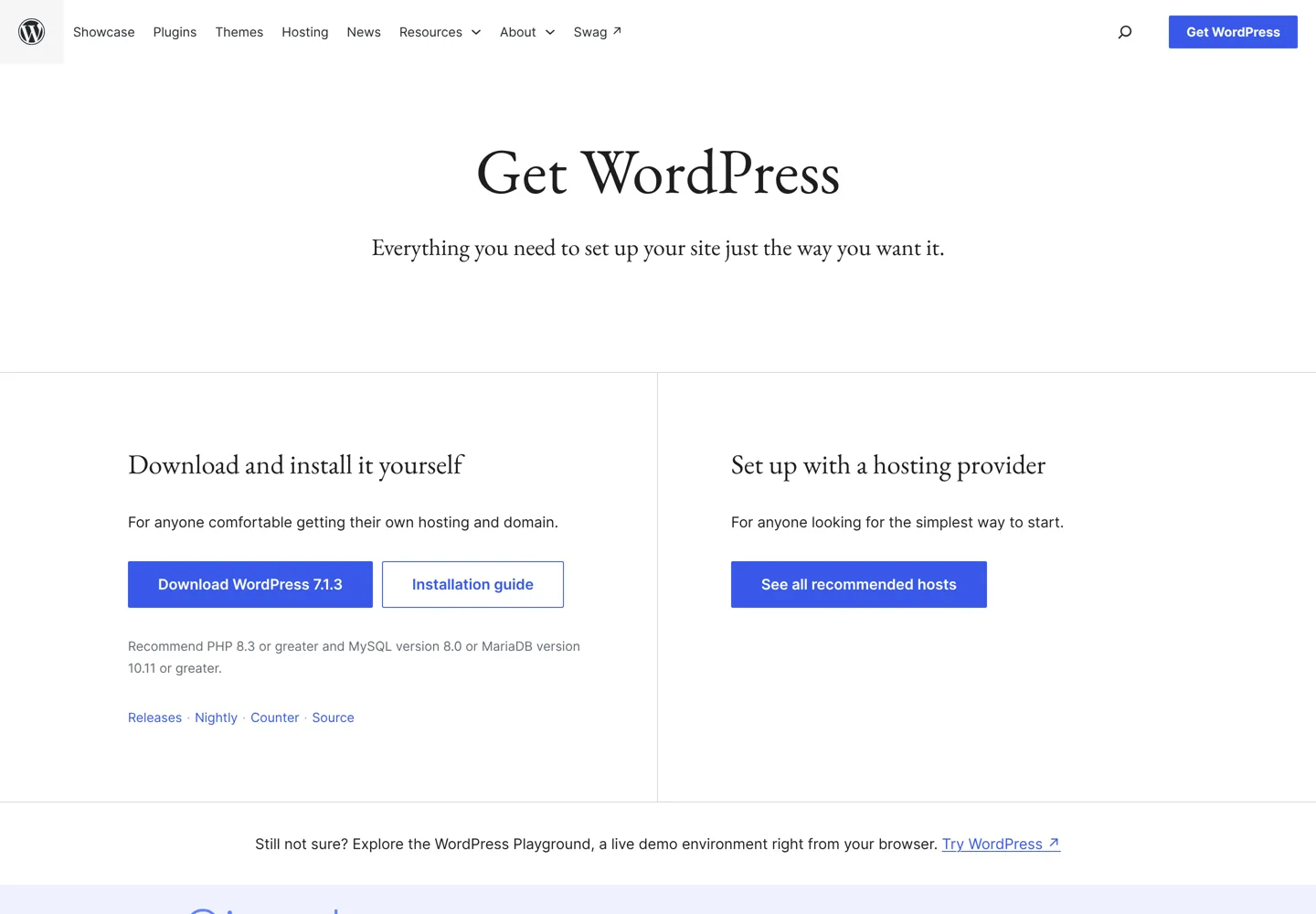
Not ready to pay for hosting yet? WordPress Playground runs a full WordPress site in your browser, with no host and no sign-up. It’s a safe place to click around the dashboard, try themes and break things before you build the real site.
Step 4: Learn the dashboard
When you log in at yoursite.com/wp-admin, you’ll see the dashboard. Five areas matter on day one:
- Posts: blog articles. WordPress’s own documentation explains that posts appear in reverse date order on your blog, newest first, and can have categories and tags.
- Pages: timeless content outside the blog’s date order, such as About, Contact and your privacy policy.
- Media: your images and files. Compress images before you upload them; big images are the most common cause of a slow beginner site.
- Appearance: your theme, menus and site editor.
- Settings: site title, tagline, time zone, reading options and permalinks.
Content is written in the block editor: each paragraph, heading, image or list is a block you can move and style. Spend an hour writing a test post and a test page; it’s the fastest way to learn.
Before you publish anything, open Settings → Permalinks and choose “Post name”. Permalinks are the permanent addresses of your posts and pages, and WordPress’s documentation calls them exactly that: permanent. Setting a clean structure on day one means you never have to change your addresses later, which would break links and cost you search traffic.
Step 5: Choose a theme
Your theme controls the design. The WordPress.org theme directory advertises more than 15,000 free themes, and premium themes add more layouts, support and features. For most new sites, a fast, flexible free theme is enough to start.
- How to choose the ideal theme for your blog: what to check before you install one.
- The best WordPress themes for every need: picks by site type.
- Astra Pro review: whether the paid add-on of the popular Astra theme is worth it.
- Tips for choosing a theme on ThemeForest: if you buy from a marketplace.
Step 6: Add only the plugins you need
Plugins add features. The WordPress.org plugin directory lists more than 75,000 free plugins, which is both the platform’s strength and the beginner’s trap: every plugin is more code to update and another thing that can slow the site or clash with others. A typical new blog needs only a handful: an SEO plugin, a backup plugin, a security or spam plugin, a contact form and perhaps a caching plugin if your host doesn’t cache for you.
- Best WordPress plugins: the essentials, by job.
- Best WordPress tools for bloggers: the wider toolkit for a blog that earns.
- Contact Form 7 step by step: set up your first form with Contact Form 7.
- How to disable right click on WordPress: if you want to discourage copying.
Before installing any plugin, check three things on its directory page: when it was last updated, how many sites use it, and whether it’s been tested with your WordPress version.
Step 7: Set up SEO from the start
Search engines are where most blogs get their long-term visitors, and a few settings made on day one save months of fixing later. Install one SEO plugin, such as Rank Math or Yoast SEO, to manage titles, meta descriptions and your XML sitemap. Then add your site to Google Search Console so you can see which searches find you.
- WordPress SEO tutorial: the full beginner-to-advanced walkthrough.
- Adding meta tags without a plugin: for when you want to keep plugins to a minimum.
Step 8: Keep it updated and backed up
Most WordPress problems come from two habits: skipping updates and having no backup. WordPress has applied minor and security updates automatically in the background since version 3.7, and most sites can do so. Major versions, themes and plugins still need your attention: you’ll see an update message in the dashboard, and the one-click update works for most people.
WordPress’s own update guide recommends backing up your site before you start, so you can restore it if anything goes wrong. Keep daily backups stored somewhere other than your hosting account, using your host’s backups or a plugin such as UpdraftPlus, and try one restore so you know it works. Managed hosts usually include both automatic updates and backups.

Start writing and grow the site
With the site built, the work becomes publishing useful posts and getting them found. If your goal is a blog, these two guides take you from here:
- How to start a WordPress blog: the WordPress-specific setup for bloggers, from domain to first post.
- How to start a blog: the bigger picture, including choosing a niche and planning your first posts.
If your business uses a CRM, connecting Pipedrive to WordPress shows how to send form leads straight into it.
Moving an existing site to WordPress
Already blogging somewhere else? You can usually bring your posts, images and comments with you. The key is keeping your old addresses working with redirects, so readers and search engines follow you to the new site. Our Blogger to WordPress migration guide walks through the whole move, including the redirects.
Every WordPress guide on this site
| Stage | Read this |
|---|---|
| Understand it | What WordPress is; WordPress and other CMS options |
| Compare platforms | WordPress vs Blogger; Showit vs WordPress; Free WordPress blog options |
| Hosting | What WordPress hosting is; Best; Cheap; Managed; Kinsta review |
| Install | How to install WordPress |
| Design | Choosing a theme; Best themes; Astra Pro review |
| Features | Best plugins; Tools for bloggers; Contact Form 7 |
| SEO | WordPress SEO tutorial; Meta tags without a plugin |
| Blog and grow | Start a WordPress blog; Start a blog |
| Move | Blogger to WordPress |
Common beginner questions, answered fast
How long does it take to learn WordPress? You can publish a simple site in a weekend. Getting comfortable with themes, plugins and SEO usually takes a few weeks of regular use. Nobody learns everything at once; learn each step when you reach it.
What does a WordPress site cost? The software is free. A self-hosted site costs a domain (often free for the first year with hosting) plus hosting, which starts at a few dollars a month on a long first term; see the hosting lists above for current prices. Premium themes and plugins are optional.
Take one step at a time, keep the site updated and backed up, and you’ll have a solid WordPress site that can grow with you.
Questions people ask
Is WordPress good for beginners?
Yes. You build and edit the site from a dashboard without code, most hosts install it in one click, and with WordPress running about 40% of all websites, almost every question already has an answer.
What is the difference between WordPress.org and WordPress.com?
WordPress.org is the free software you install on your own hosting, with full control over themes, plugins and ads. WordPress.com is a hosted service by Automattic: easier to start, with a free plan that shows its ads and paid plans for more control.
Is WordPress free?
The software is free and open source under the GPL. A self-hosted site still needs hosting and a domain, and some themes and plugins are paid. WordPress.com has a free plan with WordPress.com ads.
Can I try WordPress without hosting?
Yes. WordPress Playground runs a full WordPress site in your browser with no host or sign-up, so you can practise before you pay for anything.
How long does it take to learn WordPress?
You can publish a simple site in a weekend. Feeling at home with themes, plugins and SEO usually takes a few weeks of regular use.
Do I need to know how to code to use WordPress?
No. Themes, the block editor and plugins cover what most sites need. Code only helps when you want custom features.
Sources
- WordPress.org: Get WordPress (download) wordpress.org · checked October 11, 2026
- WordPress.org: Requirements wordpress.org · checked October 11, 2026
- W3Techs: Usage statistics of WordPress w3techs.com · checked October 11, 2026
- WordPress.com pricing wordpress.com · checked October 11, 2026
- WordPress Playground wordpress.org · checked October 11, 2026
- WordPress.org plugin directory wordpress.org · checked October 11, 2026
- WordPress.org theme directory wordpress.org · checked October 11, 2026
- WordPress documentation: Updating WordPress wordpress.org · checked October 11, 2026
- WordPress documentation: Pages wordpress.org · checked October 11, 2026
- WordPress documentation: Settings Permalinks screen wordpress.org · checked October 11, 2026
- WordPress.org: GPL license wordpress.org · checked October 11, 2026

Building websites since 2006: 500+ web projects of every size and $300K+ in website deals sold or brokered. Founder of A Digital Motive and DigiFlippers. I share the whole process here, plainly.
Founder of A Digital Motive and DigiFlippers