- You need a personal profile to create or manage a Page.
- A Page is free and comes with Facebook's professional tools.
- Names can't use "official", slogans, symbols or all capitals.
- New Pages may have to wait before claiming a username.
- Full control lets someone remove you; give task access where you can.
To create a Facebook business Page, log into your personal Facebook account, click Pages on the left, then Create Page, choose Public Page, click Get Started and add your Page name and category, then add your contact details, profile and cover photos and an action button. A Page is free and gives you Facebook’s professional tools; you need a personal profile to create or manage one. This guide walks through each step with Meta’s own help pages, checked on 12 October 2026, plus the naming rules, username, access settings and first posts.
Already have a Page and want visitors from it? Our guide on getting website traffic from Facebook Pages covers sending followers to your site. This page is about setting the Page up properly.

Page, profile or group?
Meta’s help centre separates the three:
- Profile: your personal account. Creators can turn on pro mode, which lets anyone follow the profile and see its public content.
- Page: for businesses, brands, organisations, public figures, artists and nonprofits to share updates and connect with fans or customers. When someone follows a Page, they can start seeing its updates in their Feed.
- Group: a place to talk about shared interests with certain people, with its own privacy settings.
Meta says you must have a profile to create a Page or help manage one, and that anyone with a Facebook account can create a Page. For a blog or business, a Page is the right choice: it keeps your personal profile separate, and Meta says a Page gives you access to a suite of free professional tools.
How to create a Facebook business Page: step by step

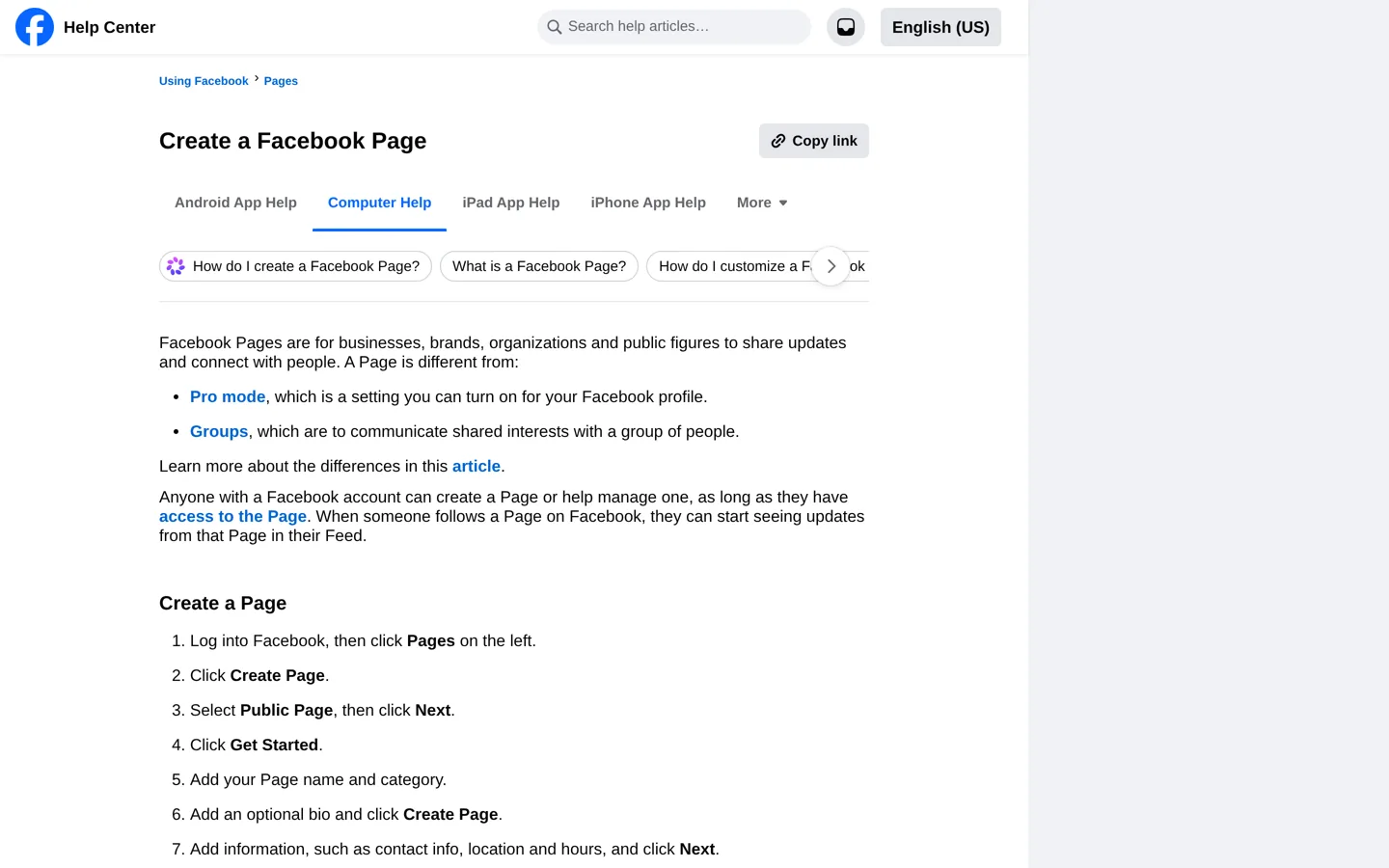
Meta’s help centre lists these steps for creating a Page on a computer:
- Log into Facebook, then click Pages on the left.
- Click Create Page.
- Select Public Page, then click Next.
- Click Get Started.
- Add your Page name and category.
- Add an optional bio and click Create Page.
- Add information such as contact details, location and hours, and click Next.
- Add profile and cover photos, edit the action button and click Next.
- Connect your WhatsApp to your Page, or click Skip.
- Invite friends to connect with your Page, and click Next.
- Select your notification settings and click Done.
Facebook changes its menus from time to time, so if a button looks different, Meta’s help page “How do I create a Facebook Page?” has the current wording.
Pick the right category
The category tells people, and Facebook, what kind of Page this is. Start typing in the category box and choose the closest match to what you actually do, such as a blog, a website or your type of business. Pick the specific option over the general one when both fit. Avoid a category that would mislead visitors; it should describe the Page as honestly as its name does.
A personal brand: Page or pro mode?
If you blog under your own name, you have a choice. Meta explains that creators can turn on pro mode on their personal profile, which lets anyone follow the profile and see its public content. A Page keeps your public work separate from your personal profile, can be managed by other people with the access you choose, and works with Meta’s business tools. If you want a team to help, or you run the blog as a business, a Page is usually simpler; if you’re a solo creator who already shares publicly on your profile, pro mode may be enough. Meta’s help centre has an article on when to create a Page or turn on pro mode.
Choose a name that follows Facebook’s rules
Meta’s guidelines say Page names must accurately reflect the Page, and recommend keeping them “simple, specific and grammatically correct”, for example “Hungry Bear Coffee”. Page names can’t include:
- the word “official” unless it’s the official Page of the brand, place, organisation or public figure;
- improper capitalisation, or all capital letters except for acronyms;
- symbols such as ® or unnecessary punctuation;
- descriptions or slogans, which belong in the About section instead;
- any variation of “Facebook”, “Meta” or Meta’s other products.
Names also can’t be only a single general word (such as “Pizza”) or a general place name. For a blog, use the blog’s name exactly as it appears on your site.
Claim a username for your Page
A username appears under your Page name and in its web address (facebook.com/username), which makes the Page easier to find and share. Meta’s steps:
- Click your profile photo in the top right, then See all profiles, and switch into the Page.
- Click the Page’s profile picture in the top right, then Settings & privacy → Settings.
- In the left menu, click Page setup, then Name, and click Edit next to your username.
- If the username is available, click Save changes.
Meta notes that newly created Pages may not be able to create a username straight away, and that a username may be removed because of inactivity. Match your site’s name or social handles where you can.
Complete the Page so people trust it
- Profile picture: your logo or, for a personal brand, a clear photo of you.
- Cover photo: a simple image that says what the Page is about. Design one in Canva or your usual editor, and check it on a phone, where it’s cropped differently.
- Bio and About section: one or two sentences on what readers get, plus your website address.
- Action button: point it to the most useful page on your site, such as your newsletter sign-up or your start-here page.
- Contact details: add only those you’ll actually answer.
Give others access safely
If someone helps you run the Page, give them only the access they need. Meta’s help centre describes two kinds:
- Facebook access, with full or partial control: people can switch into the Page and manage content, messages, comments, ads, insights and events. Full control adds settings and access, which Meta warns gives someone the same access as you, including the ability to remove you or delete the Page.
- Task access: people manage the Page from tools such as Meta Business Suite or Ads Manager, but can’t switch into the Page on Facebook. Tasks include content, messages and community activity, ads and insights.
Meta also says that for a Page to remain active, it must have at least one person with Facebook access with full control. Keep full control to yourself and one trusted backup person, so the Page isn’t lost if one account has a problem, and remove access when someone stops helping.
Settings worth checking
Meta’s Page settings include controls for who can see the Page, notification settings, country and age restrictions, and suggestions of similar Pages. There’s also an option to see what your Page looks like to visitors: use it after setup to check that your name, photos, bio and button look right to someone who isn’t logged in as you. Meta’s help centre also notes that if you want to earn from the Page, you can check whether it’s eligible in Meta Business Suite.
Your first posts
- Introduce the Page: who it’s for and what you’ll share.
- Share your best article with a short summary in your own words, not just a link.
- Post something native: a photo, a short video or a tip that’s useful without clicking away.
- Pin the post you most want new visitors to see.
Post on a schedule you can keep. If you plan posts ahead, scheduling tools are compared in our guides to Instagram schedulers and X thread schedulers.
Connect the Page to your blog
- Add a link to the Page in your site’s footer or author box.
- Add your website to the Page’s About section and action button.
- Share each new post on the Page with a sentence on why it’s useful.
Our guide on how to start a blog covers setting up the site those posts will link to.
Back up or retire a Page
Meta’s Page settings let you download a copy of your Facebook Page, which is worth doing once a year so you keep your posts and photos. If you stop using a Page, Meta lets you deactivate it to retire it and hide it from the public, or delete it. Deactivating is the safer choice if you might come back to the Page later.
Common problems
- The Page name was rejected: check it against Meta’s naming rules; slogans, all capitals and the word “official” are common causes.
- You can’t create a username yet: Meta says new Pages may have to wait.
- You can’t find the Page: click your profile photo, then See all profiles, and switch into it.
- A helper can’t see the Page on Facebook: they may have task access, which works only in tools such as Meta Business Suite.
Your Page setup checklist
- Public Page created with your blog’s exact name and the right category.
- Bio, website, contact details and action button added.
- Profile and cover photos checked on a phone.
- Username claimed when available.
- Access limited to the people who need it.
- First posts published and one pinned.
Questions people ask
How do I create a Facebook business Page?
Log into Facebook, click Pages on the left, then Create Page; select Public Page, click Next and Get Started, add your Page name, category and an optional bio, click Create Page, then add details, photos and an action button.
Is a Facebook business Page free?
Yes. Meta says a Page gives you access to a suite of free professional tools; ads are optional and paid separately.
Do I need a personal account to create a Page?
Yes. Meta says you must have a profile to create a Page or help manage one.
What can't I use in a Facebook Page name?
Meta's rules exclude 'official' (unless it is), improper or all-capital letters, symbols, slogans, and variations of 'Facebook' or 'Meta'. Names also can't be a single general word or place.
Why can't I create a username for my Page?
Meta says newly created Pages may not be able to create a username straight away. The name may also be taken or not follow the username guidelines.
How do I let someone help manage my Page?
Give Facebook access (full or partial control) or task access. Task access works through tools like Meta Business Suite and can't switch into the Page on Facebook.
Sources
- How do I create a Facebook Page? (Facebook Help) www.facebook.com · checked October 12, 2026
- Guidelines for Facebook Page names www.facebook.com · checked October 12, 2026
- Create a username for your Facebook Page www.facebook.com · checked October 12, 2026
- Facebook Page access levels www.facebook.com · checked October 12, 2026
- Differences between profiles, Pages and groups www.facebook.com · checked October 12, 2026
- How to create a Facebook Page for your business (Meta Business Help) www.facebook.com · checked October 12, 2026

Building websites since 2006: 500+ web projects of every size and $300K+ in website deals sold or brokered. Founder of A Digital Motive and DigiFlippers. I share the whole process here, plainly.
Founder of A Digital Motive and DigiFlippers