Some links on this page are affiliate links. If you buy through them I may earn a commission, at no extra cost to you. It never changes a rating. Read the disclosure
- You need both the files and the database to restore a WordPress site.
- Follow 3-2-1: three copies, two kinds of storage, one off-site.
- Host backups help, but they shouldn't be your only copy.
- UpdraftPlus's free version sends scheduled backups to Google Drive, Dropbox, S3 and more.
- Restore files first, then the database, and test restores on staging.
A WordPress backup is a copy of two things: your site’s files (themes, plugins, uploads and wp-config.php) and its database (posts, pages, users and settings). You need both to restore a site. The simplest reliable setup is a backup plugin that runs on a schedule and sends copies off your server, plus your host’s backups, plus a test restore every few months.
I’ve worked with WordPress since 2006, across more than 500 web projects, and a good backup has rescued more sites than any other tool: after failed updates, deleted pages, hacked plugins and hosting problems. This guide explains what to back up, how often, where to keep it, and how to restore it, following WordPress.org’s own backup documentation, checked on 12 October 2026.
Backups are one item on our WordPress security checklist; this page covers that item in depth. New to WordPress? Start with our WordPress guide for beginners.
What a full WordPress backup includes
WordPress.org is clear on this: “There are two parts to backing up your WordPress site: Database and Files. You need both to be able to fully restore a typical WordPress site.” Downloading your WordPress folder does not back up the database, because the database lives in a separate system (usually MySQL or MariaDB).

- Files: WordPress core, your themes and plugins, the uploads folder (every image and file you’ve added),
wp-config.phpand.htaccess. Core files can be downloaded again from WordPress.org, but your theme changes, uploads and configuration can’t. - Database: every post, page, comment, user, menu and setting, plus data stored by plugins. When you back it up you get an export file (such as
.sql,.gzor.bz2).
WordPress.org suggests treating the files and the database as one “backup set” made around the same time: back up the database first, then the files, and keep the database export in the same folder or zip as the files so they stay together.
The 3-2-1 backup rule for WordPress
The 3-2-1 rule is a widely used way to make sure one failure never takes all your copies with it. As Backblaze explains it: keep three copies of your data, on two different kinds of storage, with one copy off-site.

For a WordPress site, that usually means your live site, your host’s backups, and a plugin sending copies to cloud storage such as Google Drive, Dropbox or Amazon S3. WordPress.org’s own advice is very close: keep at least three to five recent backups in different locations, for example one on your hosting server, one in cloud storage and one downloaded to your computer.
How often should you back up WordPress?
WordPress.org’s general suggestion is weekly backups for smaller sites with fewer posts and daily backups for busy sites with many posts, and always a backup before an update or a move. The real question is: how much work could you afford to lose? I’d set it up like this:
| Site type | Database | Files | Keep |
|---|---|---|---|
| Small blog, a few posts a month | Weekly | Weekly | 4 or more |
| Active blog, posts every week | Daily | Weekly | 7 to 14 |
| Business or brochure site | Weekly, plus after edits | Weekly | 4 or more |
| Shop, membership or forum | Several times a day | Daily | 14 or more |
| Any site | Before updates and big changes | Before updates and big changes | Until you’re sure all is well |
The database changes every time you publish, someone comments or a customer orders, so it needs backing up more often than the files. Files mostly change when you upload media or update plugins.
Three ways to back up WordPress

1. Your host’s backups (and why they’re not enough on their own)
Most hosts back up your site automatically. Managed WordPress hosts usually do it daily: Kinsta, for example, lists 14 days of backup retention on its WordPress hosting, and plans at hosts such as SiteGround include daily backups. They’re convenient and often restore with one click from the hosting dashboard.
But they shouldn’t be your only copy:
- They live with your host. If your account is suspended, the host has a serious problem, or you lose access, your backups go with it.
- Retention is limited. If a hack goes unnoticed for longer than the retention period, every saved copy may already be infected.
- Restores can be slow or limited. WordPress.org notes that requesting a copy from a host’s server backups “takes time”; some cheaper plans charge for restores or keep only a few days.
- You can’t always download them. Check whether your host lets you download a backup, which you need to move hosts.
Use host backups as one of your three copies, not all of them. Compare what each host includes in our best WordPress hosting guide, or see which managed WordPress hosts include daily backups and staging.
2. A backup plugin with off-site storage (best for most sites)
A backup plugin runs on a schedule, backs up files and database together, and sends the copies to storage you control. Popular options on WordPress.org (checked 12 October 2026):
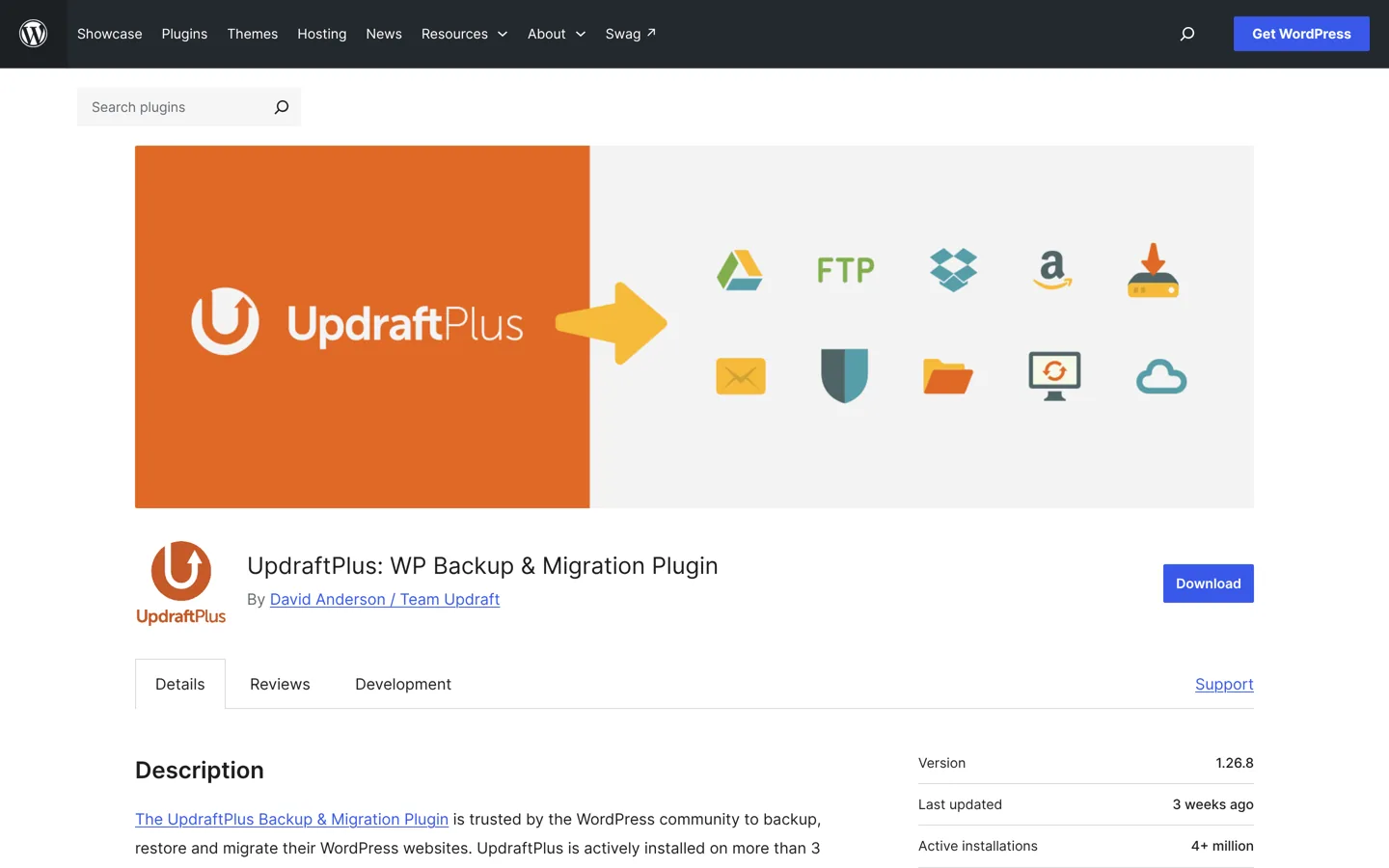
- UpdraftPlus (4+ million active installations): the free version backs up to Dropbox, Google Drive, Amazon S3 (or compatible), Rackspace Cloud, FTP, DreamObjects, OpenStack Swift or email, on a schedule from every 2 hours to monthly, and restores in a few clicks. Premium adds options such as automatic backups before updates, incremental backups, OneDrive, Backblaze B2, SFTP, more than one destination and database encryption.
- BackWPup (400,000+): complete or partial backups on hourly, daily, weekly or monthly schedules, stored on your server or in the cloud.
- Duplicator (1+ million): best known for packaging a site to move or clone it; scheduled backups and more cloud integrations are in Duplicator Pro.
One backup plugin is enough. Our list of the best WordPress plugins explains how it fits with the rest of your toolkit.
3. A manual backup
Manual backups are useful before a big change, or if you can’t install a plugin. WordPress.org describes the steps:
- Database first: open phpMyAdmin from your hosting control panel (in cPanel, it’s linked from the MySQL Databases area), click your WordPress database, click Export, choose SQL format and click Go. If you have SSH access,
wp db exportdoes the same with WP-CLI. - Then the files: download your whole WordPress folder with an SFTP program such as FileZilla, or zip it in your host’s file manager and download the zip. Don’t forget
.htaccess, which some programs hide. - Keep them together: put the database file in the same folder as the files, name it with the date, and copy it to a second place.
Step by step: back up WordPress with UpdraftPlus
Here’s how to set up automatic off-site backups with the free version of UpdraftPlus, the most installed backup plugin on WordPress.org:

- Install the plugin: in Plugins → Add New Plugin, search for UpdraftPlus, then click Install Now and Activate.
- Open its settings: go to Settings → UpdraftPlus Backups and choose the Settings tab.
- Set the schedules: choose a files schedule and a database schedule (for an active blog, weekly files and daily database), and how many backups to retain.
- Choose remote storage: pick Google Drive, Dropbox or Amazon S3, save, and follow the link to authorise UpdraftPlus to use that account.
- Choose what to include: keep plugins, themes, uploads and other folders ticked for a full backup.
- Run the first backup: on the Backup / Restore tab, click Backup Now and let it finish.
- Check it arrived: open your Google Drive, Dropbox or S3 bucket and confirm the backup files are there. Note the size, so you notice if a later backup is suspiciously small.
Two tips. Use a cloud account that’s separate from your hosting login, with its own strong password and two-factor login, so one stolen password can’t reach both. And since automatic backups before updates are a Premium feature, click Backup Now yourself before major updates on the free version.
How to restore a WordPress backup
Restoring works the same way whatever tool you use: files and database from the same backup set, from a date before the problem began. WordPress.org’s recommended order is to restore the files first, then the database.

Restore with a plugin
In UpdraftPlus, go to Settings → UpdraftPlus Backups, find the backup in the existing backups list and click Restore. Choose the components to restore (plugins, themes, uploads, database and so on), confirm, and wait for it to finish. If you only broke a plugin, you can restore just the plugins; if content went missing, restore the database.
If the site is so broken you can’t log in, install a fresh copy of WordPress (our guide to installing WordPress shows how), install the same backup plugin, connect it to your remote storage or upload the backup files, and restore from there.
Restore from your host
Most hosting dashboards list your backups by date with a restore button. Many let you restore files and database separately, or restore to a staging copy first. Ask your host’s support if you can’t find it: it’s often the quickest fix for a site that broke after an update.
Restore manually
- Upload the backed-up files to your WordPress folder by SFTP, replacing what’s there.
- Import the database: in phpMyAdmin, choose the database and use Import with your
.sqlfile, or runwp db importwith WP-CLI. WordPress.org notes that a simple restore expects an empty database, so drop the old tables first (or use an export made with “Add DROP TABLE”). - If the database name, user or password changed, update them in
wp-config.php. - Log in, check the important pages and save Settings → Permalinks once to refresh the rewrite rules.
Restoring onto a new host or domain is a migration rather than a restore: addresses inside the database need updating too. Our guide to moving WordPress to a new host covers that.
Test your restore on a staging site
A backup you’ve never restored is a hope, not a plan. WordPress.org recommends checking your automatic backups with a manual one now and then to make sure the process works, and its upgrade guide puts it bluntly: verify your backups “are there and usable. This is essential.”
The safest test is a restore onto a staging site, a private copy of your site where nothing you do affects visitors:
- Host staging: many hosts, including Kinsta, let you create a staging environment in one click and push changes live later.
- On your computer: Local runs WordPress on your own machine for free; install your backup plugin there and restore your latest backup.
Then check: does the home page load, are recent posts and images there, can you log in, do forms and menus work? Do this every few months, and after you change backup settings. If anything is missing, fix the backup settings now, while nothing is broken.
Common WordPress backup mistakes
- Keeping backups only on the same server. If the server fails or the site is hacked, the backups go too. Always send a copy off-site.
- Never testing a restore. You find out a backup is incomplete at the worst possible moment.
- Backing up files but not the database (or the other way round). You need both from the same time.
- Keeping too few copies. If a problem goes unnoticed for a week and you keep three daily backups, all three contain it. Keep some older copies too.
- No backup before updates. Make one before updating WordPress, your theme or important plugins.
- Leaving backup files in a public folder. A zip of your site in a web-accessible folder can expose
wp-config.phpand your database. Store them off-site or outside the web root. - Ignoring failed-backup emails. Turn on the plugin’s email reports and read them.
- Restoring an infected backup after a hack. Pick a backup from before the problem began, then fix the hole that let attackers in (see our security checklist).
WordPress backup checklist
- One backup plugin installed, files and database both included.
- Schedules set by how often the site changes; several backups retained.
- Copies sent to off-site storage you control, with its own strong password and 2FA.
- Host backups on as a second layer.
- A manual backup before every major update or change.
- A test restore on staging every few months.
For the other tools I use to run a blog, see our list of WordPress tools for bloggers. If you’d rather have backups, updates and security handled for you, my agency A Digital Motive looks after WordPress sites for clients.
Questions people ask
How often should I back up my WordPress site?
WordPress.org suggests weekly for smaller sites and daily for busy sites with many posts, plus a backup before every update. Shops and membership sites should back up the database several times a day.
Does my host back up my WordPress site?
Most hosts do, often daily on managed plans. But host backups are stored with the host and kept for a limited time, so also keep your own copy off-site.
What is the best free WordPress backup plugin?
UpdraftPlus is the most installed backup plugin on WordPress.org, with 4+ million active installations. Its free version schedules backups, sends them to Google Drive, Dropbox, S3 and more, and restores in a few clicks.
Where should I store WordPress backups?
Somewhere other than your hosting server: cloud storage such as Google Drive, Dropbox or Amazon S3, plus a copy on your computer. WordPress.org recommends keeping 3–5 recent backups in different locations.
Can I back up WordPress without a plugin?
Yes. Export the database in phpMyAdmin (or with wp db export) and download your WordPress folder by SFTP. Keep both from the same time together.
How do I restore WordPress if I can't log in?
Use your host's restore tool, or restore manually: upload the files by SFTP, import the database in phpMyAdmin and check wp-config.php. You can also install fresh WordPress and the same backup plugin, then restore from your remote storage.
How do I know my backup works?
Restore it on a staging site or on your computer with Local, then check that pages, images, posts and logins all work. Do this every few months.
Sources
- Backups (WordPress.org) developer.wordpress.org · checked October 12, 2026
- Backing up your database (WordPress.org) developer.wordpress.org · checked October 12, 2026
- Upgrading WordPress (WordPress.org) developer.wordpress.org · checked October 12, 2026
- UpdraftPlus (WordPress.org plugin page) wordpress.org · checked October 12, 2026
- BackWPup (WordPress.org plugin page) wordpress.org · checked October 12, 2026
- Duplicator (WordPress.org plugin page) wordpress.org · checked October 12, 2026
- The 3-2-1 backup strategy (Backblaze) www.backblaze.com · checked October 12, 2026
- wp db export (WP-CLI) developer.wordpress.org · checked October 12, 2026
- Kinsta WordPress hosting kinsta.com · checked October 12, 2026
- SiteGround WordPress hosting www.siteground.com · checked October 12, 2026

Building websites since 2006: 500+ web projects of every size and $300K+ in website deals sold or brokered. Founder of A Digital Motive and DigiFlippers. I share the whole process here, plainly.
Founder of A Digital Motive and DigiFlippers