Some links on this page are affiliate links. If you buy through them I may earn a commission, at no extra cost to you. It never changes a rating. Read the disclosure
- Copy and test first; switch DNS last. That order is what avoids downtime.
- Lower your DNS TTL about a week before the move, as Google suggests.
- Write down MX and TXT records first, or email can stop after the switch.
- Kinsta, Hostinger and Hosting.com list free migrations; plugins and a manual move are the alternatives.
- Keep the old host until its traffic reaches zero, then cancel.
To migrate WordPress to a new host without downtime, copy the site to the new server while the old one keeps running, test the copy before anyone can see it, and only then point your domain’s DNS at the new host. Visitors keep seeing the old site until DNS switches, then see an identical one. This guide covers the whole process: the pre-flight checklist, three ways to copy the site, testing, switching DNS and email, and what to check afterwards. It follows Google’s own guidance on changing hosting without changing URLs, and every host offer and plugin limit below was checked on the official pages on 12 October 2026.
I’ve worked with WordPress since 2006, and moving a site to new hosting is part of every website sale: I’ve sold or brokered more than $300K in website deals since my first sale on Flippa in 2016. The moves that go wrong are rarely the big sites; they’re the ones done in a hurry without a backup, a test, or a note of the email records.
This page is about moving a WordPress site between hosts on the same domain. Switching platforms is a different job: see how to move from Blogger to WordPress. Starting from scratch? See how to install WordPress.

When should you move to a new host?
Moving takes effort, so do it for a clear reason. The common ones:
- The server is slow even after caching and image fixes (see our guide to WordPress speed optimization).
- Repeated downtime or resource-limit errors as traffic grows.
- Old software: the host can’t offer PHP 8.3 or newer, which WordPress.org recommends.
- Support that can’t fix WordPress problems, or a renewal price that no longer makes sense.
- A site has changed hands and the buyer wants it on their own account.
If you’re still choosing where to go, our guide to what WordPress hosting is explains the types, the best WordPress hosting ranking compares hosts, and there are separate picks for managed WordPress hosting and cheap WordPress hosting. Avoid the busiest weeks of your year: a quiet week gives you room to fix surprises.
Pre-flight checklist (do this a week before)
- Take a full backup of files and database and download it to your computer, not just to the old server. WordPress.org’s moving guide starts with exactly this step. Our guide to WordPress backup and restore shows how.
- Find out where your DNS is managed. It may be at your domain registrar, your old host, or a service such as Cloudflare. If the old host manages your DNS and you’re cancelling it, you’ll need to move DNS too.
- Write down every DNS record: A and AAAA (the website), CNAME (www and subdomains), MX (email delivery), and TXT (SPF, DKIM, DMARC and verification records). Take a screenshot of the zone. Email is what most people forget.
- Lower the TTL. Google’s site-move guide suggests lowering your DNS records’ TTL “to a conservative low value (for example, a few hours) at least a week in advance of the move”, so the switch spreads faster.
- Check how Search Console is verified. Google notes that if you verify with an HTML file, the file must come with you; a meta tag or Google Analytics verification must be in the new copy too. DNS verification survives as long as you copy the TXT record.
- Note versions and extras: PHP version, cron jobs, redirects in .htaccess, and anything stored outside WordPress (custom folders, downloads).
- Plan a content freeze. Don’t publish, and pause comments or orders if you can, from the moment you copy until DNS has switched. Anything added to the old site after the copy won’t be on the new one.
Three ways to migrate WordPress to a new host

| Method | Effort | Cost | Best for |
|---|---|---|---|
| New host’s migration service | Lowest: fill in a form | Free at many hosts | Most sites |
| Migration plugin | Medium: export, then import | Free versions exist; paid for large or multisite | Small and medium sites |
| Manual (files + database) | Highest | Free | Large sites, full control, no dashboard access |
Method 1: let the new host migrate it for you
Many hosts move your site for free, and for most people this is the safest option because the host’s team does it every day. What I found on the hosts’ own pages on 12 October 2026:
- Kinsta: free, unlimited migrations from any WordPress host, handled by its migrations team with no downtime, usually within one business day. You update your DNS when they’re done. Our Kinsta review covers the rest of the service.
- Hostinger: unlimited free WordPress and other website migrations once you’ve bought a hosting plan; you submit your site’s details and logins.
- Hosting.com (formerly A2 Hosting): free, unlimited migrations on every plan, including email, domains and DNS (see our Hosting.com review); it says most moves take between 30 minutes and 48 hours, and you preview the migrated site on a temporary URL before any DNS change.
- SiteGround: its free SiteGround Migrator plugin moves a site to a SiteGround account using a transfer token from your control panel, then gives you a temporary URL to check it. The plugin can’t move a site to any other host, and isn’t suitable for localhost sites or full multisite networks.
Read the terms for your plan before you sign up (some offers depend on the plan or a time window), and ask what’s included: email, extra sites and staging copies are often handled differently.
Method 2: use a migration plugin
A migration plugin packs your whole site (files and database) into one file and unpacks it on the new host, fixing the URLs on the way. The two best-known:
- Duplicator: the free version builds a backup of any size with a migration wizard and installer, including search and replace. Multisite networks need Duplicator Pro.
- All-in-One WP Migration: exporting is free for sites of any size. Importing on the new site is limited by the upload size your new host allows (the Import screen shows it); the plugin’s page says this limit is set by the host, not the plugin. The paid Unlimited Extension gets around it.
The steps are much the same with either plugin:
- On the old site, install the plugin and create a full export (or backup package). Download it.
- On the new host, install a fresh WordPress (most hosts can do it in one click) on a temporary URL, or upload the plugin’s installer file if it uses one.
- Install the same plugin on the new site and import the package. This replaces the new site with your old one, including users and passwords.
- Log in with your old username and password, go to Settings → Permalinks and click Save to refresh the rewrite rules.
- Test the copy (next section) before touching DNS.
Method 3: move it manually (files + database)
The manual method needs no plugin and works for sites of any size. WordPress.org’s guide to moving WordPress says that if the domain and URLs stay the same, you can move “by just copying your files and database”.
- Copy the files. Download the whole WordPress folder (including
wp-contentand the hidden.htaccess) over SFTP, or make a compressed archive in the old host’s file manager. - Export the database from phpMyAdmin (Export → SQL) or, with SSH, run
wp db export. - Create a new database and user on the new host, with all privileges.
- Import the database into it with phpMyAdmin or
wp db import. - Upload the files to the new host’s web root.
- Edit
wp-config.phpwith the new database name, user, password and host. WordPress.org: if only the database name or user changes, this is the only edit you need. - Search and replace only if the address changes, for example from http to https or while testing on a temporary URL. Don’t run a plain find-and-replace in a SQL file: WordPress.org warns that it breaks serialized data stored by themes and widgets. Use
wp search-replace 'old' 'new' --skip-columns=guid --dry-runfirst, then without--dry-run, or the Better Search Replace plugin, which handles serialized data and has a dry-run mode. WordPress.org also says never to change theguidcolumn.
Test the new site before you switch DNS
This step is what makes the move zero-downtime. Google’s guide recommends testing “all aspects of how your users interact with your site”: pages, images, forms and downloads.
There are two ways to see the new copy while your domain still points at the old host:
- Your computer’s hosts file (best). Add a line with the new server’s IP address and your domain (for example
203.0.113.10 example.comand the same forwww.example.com) to/etc/hostson Mac and Linux orC:\Windows\System32\drivers\etc\hostson Windows. Only your computer now opens the new server, with the real domain, so nothing in WordPress needs changing. Remove the line when you’re done. - A temporary URL from the host. Easy, but WordPress stores its address in the database, so the copy either redirects to the live domain or needs its address changed (the “WordPress Address” and “Site Address” settings) for the test and changed back afterwards. Host migration tools usually handle this for you.

If the test copy is public on a temporary hostname, Google advises adding a noindex rule so it doesn’t get indexed, and removing any such block (and any “Discourage search engines” setting in Settings → Reading) before you go live.
My test list: home page, five or six top posts, a category page, search, the contact form (send yourself a message), logging in, any shop checkout in test mode, images in old posts, and downloads.
Switch DNS and email records
When the copy passes your tests, make the switch. You have two choices:
- Change the A record (and AAAA, if you have one) at your current DNS provider to the new server’s IP address. Your other records stay as they are, which is the safest way to keep email working.
- Change the nameservers at your registrar to the new host’s. Before you do, recreate every record from your pre-flight list (MX, TXT, CNAME) in the new host’s DNS zone, or email and other services stop.
If your email is hosted by the old web host, set up the mailboxes on the new host (or a separate email service) first and copy the messages over, or the old mailboxes vanish when you cancel. Email hosted elsewhere, such as Google Workspace or Microsoft 365, keeps working as long as its MX and TXT records are copied exactly.
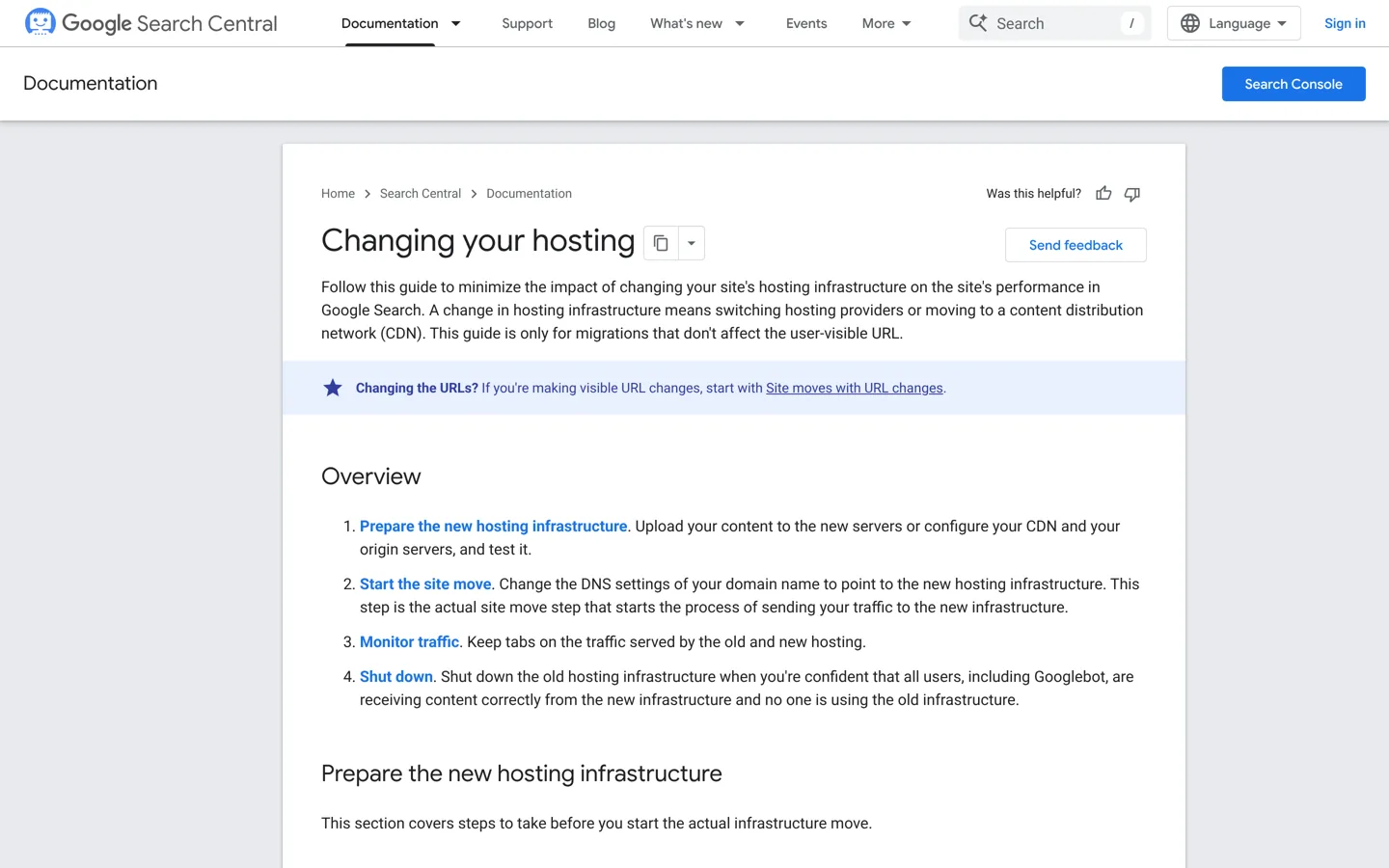
With a low TTL, most visitors reach the new server within hours. Google suggests watching the server logs on both hosts: traffic on the old one falls as traffic on the new one rises. Public DNS checking tools show which DNS resolvers around the world have picked up the change.
After the move
- SSL: make sure the new host has issued an HTTPS certificate for your domain (many issue it automatically once DNS points at them) and that http redirects to https.
- Permalinks: go to Settings → Permalinks and click Save, as WordPress.org advises after a move.
- Caching: turn on the new host’s cache or your caching plugin, and remove any cache plugin that only worked on the old server.
- Search Console: check a few URLs with the URL Inspection tool. Google says a temporary dip in crawling right after a hosting change is normal, followed by a steady increase over the next few days.
- 404 checks: watch Search Console and your 404 log for missing files, usually uploads that weren’t copied.
- Forms and email: send a test from every form and check that WordPress emails (password resets, orders) arrive.
- Backups: set up backups on the new host before you rely on it.
- Keep the old host for a few days. Google’s advice is to shut it down only once traffic to the old servers reaches zero. Then cancel, after downloading a final backup.
A zero-downtime timeline
| When | What to do |
|---|---|
| 7 days before | Back up, note DNS and email records, lower the TTL |
| Move day | Freeze content, copy the site, test with the hosts file |
| Switch | Change the A record or nameservers; check SSL |
| First days after | Watch logs, Search Console and 404s; test forms and email |
| When old traffic is zero | Final backup, cancel the old host, raise the TTL again |
Troubleshooting common migration problems
- “Error establishing a database connection”: the database name, user, password or host in
wp-config.phpdoesn’t match the new host. Some hosts use a database host other thanlocalhost; check the control panel. - Mixed content warnings (no padlock): the page loads over HTTPS but some images or scripts still use http:// addresses, and most browsers now block that content. Run a search and replace from
http://example.comtohttps://example.com(with--skip-columns=guid), and check theme settings and hard-coded links. - Broken or missing images: the
wp-content/uploadsfolder didn’t copy fully, file permissions are wrong, or old image addresses point to a temporary URL. Re-upload the missing folders and search-replace any temporary address. - Only the home page works (other pages 404): the
.htaccessfile is missing or the rewrite rules weren’t rebuilt. Save Settings → Permalinks. - A redirect loop or the site jumps to the old address: the WordPress Address or Site Address is wrong, or both http and https redirects are fighting. Check Settings → General, or the
siteurlandhomerows in the options table. - Email stopped: MX or TXT records weren’t copied to the new DNS zone. Compare against your pre-flight screenshot.
- A blank page or 500 error: usually a PHP version difference or a plugin that doesn’t run on the new server. Match the old PHP version first, then update the plugin.
Which migration method should you choose?
If your new host offers a free migration, use it: it’s the least work and the host takes responsibility for the copy. Choose a plugin for a small or medium site you want to move yourself, and the manual method for large sites or when you can’t log in to the dashboard. Whichever you choose, the zero-downtime part is the same: copy, test, then switch DNS, and keep the old host until its traffic reaches zero.
When a website changes hands, for example through DigiFlippers, the marketplace I founded for buying and selling websites, this same process moves it to the buyer’s hosting. For a complex move done for you, A Digital Motive, my agency, handles WordPress migrations. Once you’ve moved, review the basics in our WordPress security checklist.
Questions people ask
Will my site go down when I change hosts?
Not if you copy and test the site on the new host first and switch DNS last. The old site keeps serving visitors until DNS points at the new server.
Will moving to a new host hurt my SEO?
Not when the URLs stay the same and the new server works well. Google says a temporary dip in crawling right after a hosting change is normal, followed by a steady increase over the next few days.
How long does DNS take to switch?
It depends on the TTL of your records. Lower the TTL to a few hours about a week before the move, as Google suggests, and most visitors reach the new server within hours.
Do I need to change my domain registrar to change hosts?
No. Your registrar and host can be different companies. You only change the A record or the nameservers so the domain points to the new server.
What happens to my email when I change hosts?
If email is hosted elsewhere, copy its MX and TXT records exactly and it keeps working. If your old web host runs your mailboxes, set them up on the new host or an email service and copy the messages before you cancel.
Is All-in-One WP Migration free?
Exporting is free for sites of any size. Importing is limited by the upload size your host allows; the paid Unlimited Extension removes that limit.
When can I cancel my old hosting?
When its server logs show no more traffic, as Google advises, and after you've downloaded a final backup. Allow a few days.
Sources
- Changing your hosting (Google Search Central) developers.google.com · checked October 12, 2026
- Moving WordPress (WordPress Advanced Administration Handbook) developer.wordpress.org · checked October 12, 2026
- wp search-replace (WP-CLI) developer.wordpress.org · checked October 12, 2026
- wp db export (WP-CLI) developer.wordpress.org · checked October 12, 2026
- Duplicator (WordPress.org) wordpress.org · checked October 12, 2026
- All-in-One WP Migration (WordPress.org) wordpress.org · checked October 12, 2026
- SiteGround Migrator (WordPress.org) wordpress.org · checked October 12, 2026
- Better Search Replace (WordPress.org) wordpress.org · checked October 12, 2026
- Kinsta free WordPress migrations kinsta.com · checked October 12, 2026
- Hostinger free website migration www.hostinger.com · checked October 12, 2026
- Hosting.com free website migration hosting.com · checked October 12, 2026
- What is mixed content? (web.dev) web.dev · checked October 12, 2026
- WordPress requirements wordpress.org · checked October 12, 2026

Building websites since 2006: 500+ web projects of every size and $300K+ in website deals sold or brokered. Founder of A Digital Motive and DigiFlippers. I share the whole process here, plainly.
Founder of A Digital Motive and DigiFlippers