
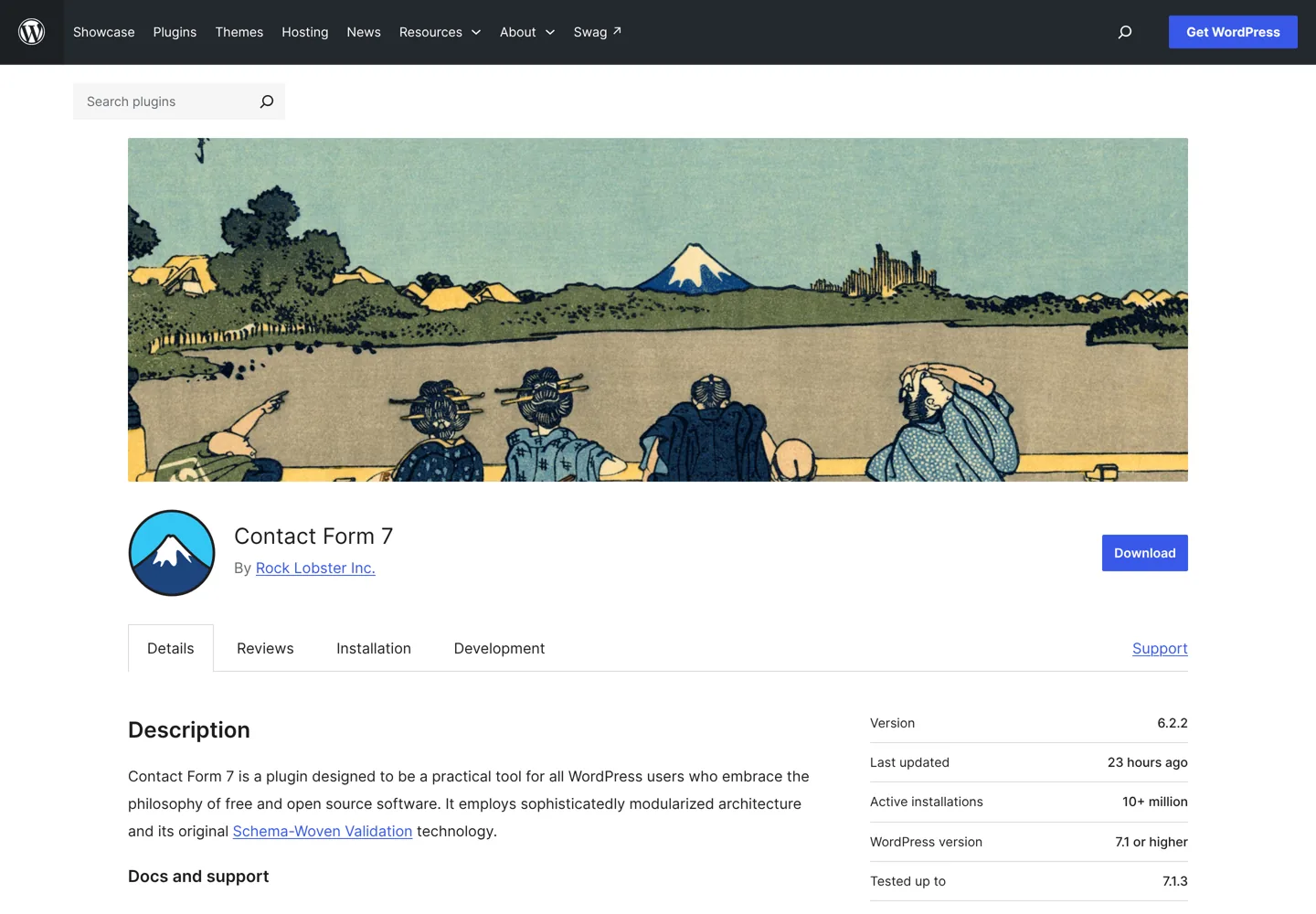
- Contact Form 7 is free and runs on 10,000,000+ sites; 6.2.2 needs WordPress 7.1 and PHP 8.3.
- The From address should be on your website's own domain, or you'll get a configuration error.
- The plugin recommends Cloudflare Turnstile, which is free, for spam protection.
- Contact Form 7 doesn't store messages; Flamingo saves them in your dashboard.
- WP Mail SMTP fixes most "message failed to send" problems.
This Contact Form 7 tutorial shows how to install the plugin, edit the form, set up the email you receive, add the form to a page, block spam and make sure messages actually arrive. Contact Form 7 is free, runs on 10,000,000+ WordPress sites according to WordPress.org, and was updated on 11 October 2026 (version 6.2.2). Every step below follows the plugin’s own documentation and its built-in default form, checked on 12 October 2026.

Before you start
- Check your versions. Contact Form 7 6.2.2 requires WordPress 7.1 or newer and PHP 8.3 or newer, according to its WordPress.org listing. If your host runs an older PHP version, update it first or the plugin won’t install.
- Make sure your site can send email. Contact Form 7 sends each message as an email; it doesn’t store messages by default. We’ll fix both in step 6.
- Have a Contact page ready, or create one titled “Contact”.
- Starting from scratch? Our guide on how to install WordPress gets the site itself running first.
Step 1: Install Contact Form 7
- Log in as an administrator and go to Plugins → Add Plugin.
- Search for Contact Form 7 (by Rock Lobster Inc.).
- Click Install Now, then Activate.
The plugin’s documentation says all its features are free, forever. On activation it creates a ready-made form called “Contact form 1” and adds a Contact menu to your dashboard.
Step 2: Understand the default form
Go to Contact → Contact Forms and open “Contact form 1”. The Form tab holds the template. This is the default, straight from the plugin’s code:
<label> Your name
    [text* your-name autocomplete:name] </label>

<label> Your email
    [email* your-email autocomplete:email] </label>

<label> Subject
    [text* your-subject] </label>

<label> Your message (optional)
    [textarea your-message] </label>

[submit "Submit"]
Each part in square brackets is a form-tag: the field type (text, email, textarea), an asterisk if the field is required, and a name such as your-name that you’ll use in the email. The autocomplete options let browsers fill in the visitor’s name and email.
Step 3: Edit or add fields

Every form has four tabs: Form, Mail, Messages and Additional settings. To add a field, use the buttons above the Form box (text, email, URL, tel, number, date, text area, drop-down menu, checkboxes, radio buttons, acceptance, quiz, file and submit). Each button opens a small generator: fill in the options, click Insert Tag, and wrap the new tag in a <label> like the others so screen readers announce it properly.
Useful changes for most sites:
- Make the message required: change
[textarea your-message]to[textarea* your-message]and remove “(optional)” from its label. - Add a phone field:
[tel your-phone autocomplete:tel]. - Add a consent checkbox with the acceptance field, linking your privacy policy, if your audience or local law needs it.
Keep the form short. Every extra field is another reason for a visitor not to send it.
Step 4: Set up the Mail tab
The Mail tab is the template for the email you receive. Contact Form 7’s documentation explains each field:
- To: the address that receives messages.
- From: the sender address. The documentation says it should be an email address that belongs to the same domain as your website, or you’ll get a configuration error. The default uses your site title and an address on your domain.
- Subject: by default your site title plus the visitor’s subject.
- Additional headers: the default already contains
Reply-To: [your-email], so clicking Reply answers the visitor rather than your own address. Keep it, and add Cc or Bcc lines here if needed, one per line. - Message body: use mail-tags (the field names in brackets, such as
[your-name]) wherever you want the visitor’s answers to appear.
Mail (2) is an optional second template, often used to send the visitor an automatic confirmation. Use it sparingly: spammers can abuse auto-replies.
Step 5: Add the form to your page
- Go to Pages → All Pages and open your Contact page.
- Add a Contact Form 7 block.
- Select your form (“Contact form 1” unless you renamed it).
- Save or update the page.
On a classic theme or in a widget, you can paste the shortcode shown next to the form’s title on the Contact Forms screen instead.
Step 6: Stop spam and make sure messages arrive

Block spam with Cloudflare Turnstile
Contact Form 7’s documentation recommends Cloudflare‘s free Turnstile, a CAPTCHA alternative, unless you have a reason to use Google reCAPTCHA. Create a Turnstile widget in your Cloudflare account (Managed mode, as recommended), copy the site key and secret key, then go to Contact → Integration, choose Setup integration under Turnstile and paste them. Every form is then protected automatically. To move the widget from the top of the form, add a [turnstile] tag where you want it.
Contact Form 7 also integrates with Akismet for spam filtering. The plugin’s privacy notice points out that features like reCAPTCHA, Akismet and Turnstile may send the submitter’s data, including their IP address, to that service, so mention them in your privacy policy.
Get emails delivered
Many hosts send WordPress email in a way that ends up in spam folders or never arrives. WP Mail SMTP (4,000,000+ installs on WordPress.org) sends your site’s email through a proper mail service instead. Set it up with your email provider and send a test.
Keep a copy of every message
Contact Form 7 doesn’t store messages. Flamingo, from the same developer (800,000+ installs), saves every submission in your dashboard, so nothing is lost if an email fails. Its own notice reminds you that it stores the submitted personal data, so include that in your privacy policy and delete old messages you don’t need.
Contact Form 7 tutorial example: a quote request form
To put the steps together, here’s a slightly bigger form a freelancer or small business might use. Create it with Contact → Add Contact Form, then build it with the tag generator buttons. The finished Form tab looks like this:
<label> Your name
    [text* your-name autocomplete:name] </label>

<label> Your email
    [email* your-email autocomplete:email] </label>

<label> What do you need?
    [select* your-service "Website design" "SEO" "Something else"] </label>

<label> Tell us about the project
    [textarea* your-message] </label>

[acceptance your-consent] I agree to the privacy policy. [/acceptance]

[submit "Request a quote"]
Then, in the Mail tab, make the Subject Quote request: [your-service] and add the new fields to the message body: [your-name], [your-email], [your-service] and [your-message]. Each mail-tag must match a field name in the form exactly; a mail-tag for a field that doesn’t exist simply stays empty.
Finally, open the Messages tab and rewrite the success message in your own words, for example telling visitors when to expect a reply. Small touches like a clear button label (“Request a quote” rather than “Submit”) and a promise about response time make people more likely to send the form.
Making the form look right
Contact Form 7 has no design settings of its own: forms take their fonts, colours and spacing from your theme. If fields look cramped or buttons don’t match your site, check your theme’s form styles first. For finer changes, add a little CSS in your theme’s custom CSS area, targeting the .wpcf7 wrapper class the plugin adds around every form, so the changes don’t affect other forms on the site. Keep labels visible above the fields rather than relying on placeholder text, which disappears as people type and is harder to read.
Step 7: Test the form
- Open the Contact page in a private browser window and send a test message.
- Check that you see the success message, that the email arrives in your inbox (not spam) and that Reply goes to the visitor’s address.
- Submit the form with a required field empty to check the error messages, and try it on your phone.
- If you use Flamingo, check the message appears there too.
Common problems and fixes
- “There was an error trying to send your message. Please try again later.” (the plugin’s default failure message): your site can’t send email. Set up WP Mail SMTP and check the From address uses your domain.
- A configuration error warning on the Mail tab: usually the From address isn’t on your site’s domain, or a field in To isn’t a valid address.
- Emails land in spam: send through a mail service with WP Mail SMTP, and make sure your domain’s email records are set up by your email provider.
- The form doesn’t appear: check that the block or shortcode is on the page and the form wasn’t deleted.
- Lots of spam: turn on Turnstile and remove any fields bots like to fill, such as a website URL field you don’t need.
Contact Form 7 or another form plugin?
Contact Form 7 is free, light and flexible, but you edit forms as text and need extra plugins to store messages. If you’d prefer a drag-and-drop builder with entries built in, WPForms (5,000,000+ installs; its free version is WPForms Lite) and Ninja Forms (500,000+) are popular alternatives. Our list of the best WordPress plugins covers other essentials, and the WordPress guide for beginners shows where a contact page fits in a new site.
Questions people ask
Is Contact Form 7 free?
Yes. Its documentation says you can download it from WordPress.org and use all features for free forever.
Why is Contact Form 7 not sending emails?
Usually your site can't send email reliably, or the From address isn't on your domain. Set up WP Mail SMTP and use a From address on your site's domain.
Does Contact Form 7 save submissions?
No. Install Flamingo, from the same developer, to store every message in your dashboard.
How do I stop spam in Contact Form 7?
Use the built-in Cloudflare Turnstile integration under Contact → Integration, which the plugin's documentation recommends, or Akismet.
How do I add Contact Form 7 to a page?
Edit the page, add a Contact Form 7 block and choose your form, or paste the form's shortcode.
What are the requirements for Contact Form 7?
Version 6.2.2 requires WordPress 7.1 or newer and PHP 8.3 or newer, according to WordPress.org.
Sources
- Contact Form 7 (WordPress.org) wordpress.org · checked October 12, 2026
- Getting started with Contact Form 7 contactform7.com · checked October 12, 2026
- Setting up mail (Contact Form 7) contactform7.com · checked October 12, 2026
- Cloudflare Turnstile integration (Contact Form 7) contactform7.com · checked October 12, 2026
- Flamingo (WordPress.org) wordpress.org · checked October 12, 2026
- WP Mail SMTP (WordPress.org) wordpress.org · checked October 12, 2026

Building websites since 2006: 500+ web projects of every size and $300K+ in website deals sold or brokered. Founder of A Digital Motive and DigiFlippers. I share the whole process here, plainly.
Founder of A Digital Motive and DigiFlippers