
- Disabling right click deters casual copying only; it can't stop determined copying.
- Block images only, so text and links keep working for readers.
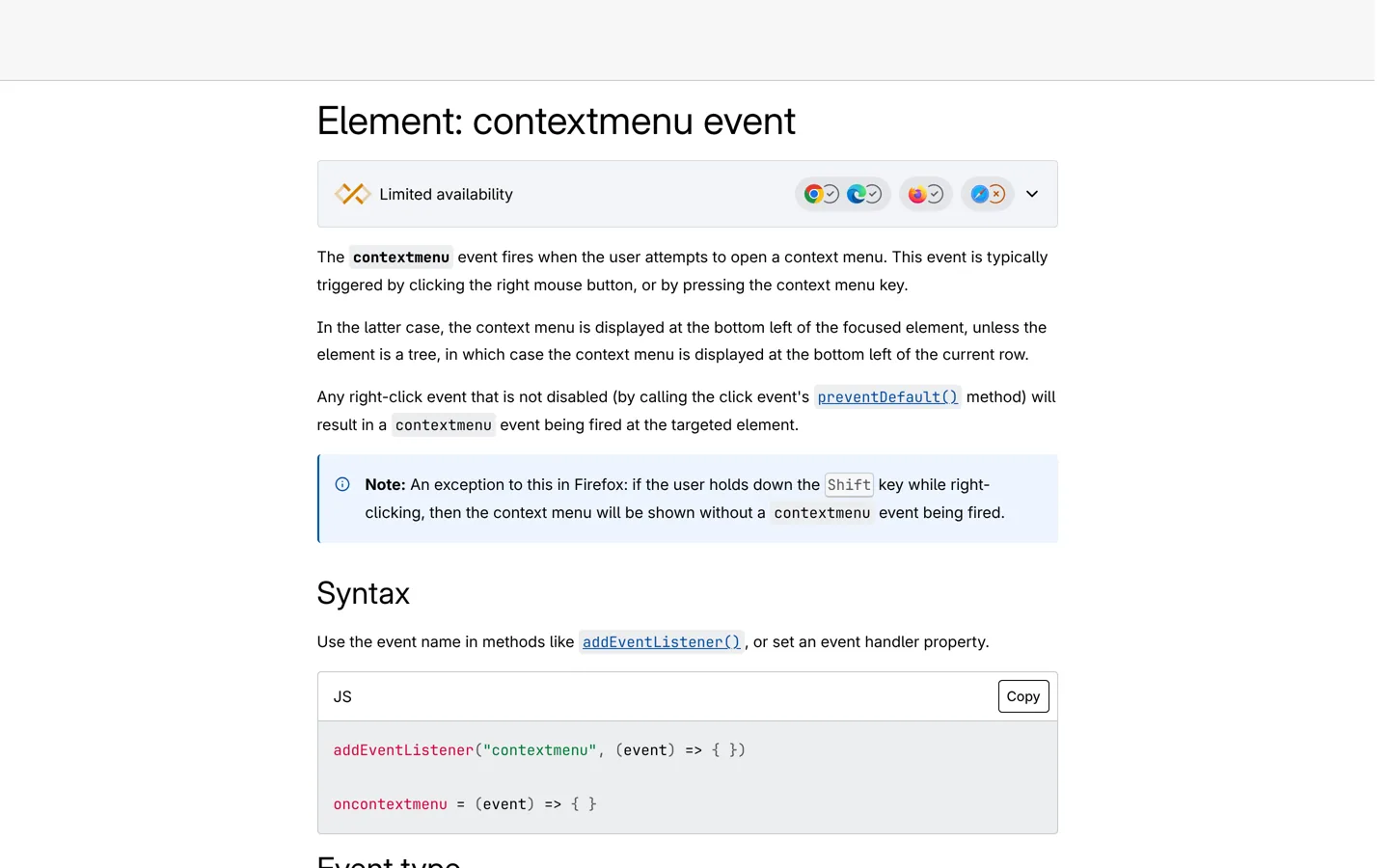
- Firefox shows the menu with Shift held down, as Mozilla documents.
- Use one plugin or the code, not both, and test galleries afterwards.
- Watermarks, excerpt-only feeds and removal requests protect more.
To disable right click on WordPress, add a few lines of code that cancel the browser’s contextmenu event, either on images only or on the whole page, or install a plugin such as WP Content Copy Protection & No Right Click. Know the limits first: it only stops casual copying, because anyone can still view the source, take a screenshot or switch off JavaScript, and it can annoy genuine readers. This guide gives code we tested on a local WordPress site on 12 October 2026, the plugin options from WordPress.org, and better ways to protect your work.

Should you disable right click at all?
Disabling right click hides the browser’s context menu, which people use to save images, copy text, open links in a new tab and more. It deters casual copying, but it doesn’t stop determined copying. Even the developer of the No Right Click Images plugin says on its WordPress.org page that “it is impossible to keep people from stealing images that appear in web pages”, and that the plugin deters casual theft from people who won’t dig into the HTML or the browser cache.
There are technical gaps too. Mozilla’s developer documentation notes that in Firefox, holding Shift while right-clicking shows the context menu without firing the event your code cancels. The plugin’s page also warns that some browsers prevent JavaScript from changing the context menu. And readers lose useful actions, such as opening a link in a new tab or translating a selection.
A sensible middle ground: if you want any protection, block right click on images only, and leave text and links alone.
How to disable right click on WordPress without a plugin
Add the code to your child theme’s functions.php or a small site plugin, never to a parent theme, where updates would erase it. Back up first, and make sure you can reach your files by SFTP or your host’s file manager in case of a typing mistake. Our guide to adding code without a plugin explains child themes and safe editing.
Option 1: images only (recommended)
add_action( 'wp_enqueue_scripts', 'mysite_no_right_click_images' );
function mysite_no_right_click_images() {
	if ( is_user_logged_in() ) {
		return; // you and your editors keep the normal menu
	}
	wp_register_script( 'mysite-no-right-click', false, array(), null, array( 'in_footer' => true ) );
	wp_enqueue_script( 'mysite-no-right-click' );
	wp_add_inline_script(
		'mysite-no-right-click',
		"document.addEventListener('contextmenu', function (e) { if (e.target.closest('img')) { e.preventDefault(); } });"
	);
}
How it works: the code listens for the contextmenu event, which Mozilla’s documentation describes as firing when the user tries to open a context menu, typically with the right mouse button or the context-menu key. If the click is on an image, preventDefault() cancels the menu. WordPress’s wp_add_inline_script() prints the small script in the page’s footer. In our test, right-clicking an image was blocked while right-clicking text still opened the menu.
Option 2: the whole page
To block the menu everywhere, replace the inline script line with:
"document.addEventListener('contextmenu', function (e) { e.preventDefault(); });"In our test this blocked the menu on both images and text. Use it sparingly: it removes useful actions for every reader, including opening links in new tabs.
Check that it works
- Open your site in a private window, so you’re logged out.
- Right-click an image: no menu should appear. Right-click text: with option 1, the normal menu should still appear.
- Test on a phone too. A long press on an image is handled differently by mobile browsers, so results vary.
- If nothing changes, clear your caching plugin’s cache and your host’s cache, then try again.
Change which elements are protected
The images-only script checks e.target.closest('img'). To protect something else, change the selector: 'figure' covers images with their captions, and a class you add to particular blocks, such as '.no-copy', protects only those. Add the class in the block’s Advanced → Additional CSS class(es) setting. Targeting a few elements keeps the rest of the page working normally for every reader.
Disable right click with a plugin

- WP Content Copy Protection & No Right Click (100,000+ active installs on WordPress.org, rated 4.8) says it protects posts and the home page using JavaScript and CSS, disabling right click and copy and paste. A Pro version adds more controls.
- No Right Click Images (20,000+ installs, rated 4.7) uses JavaScript to disable the context menu on images only, so other right-click actions such as links work normally. It can be turned off for logged-in users. Its page notes that phone support is hit or miss, and that large images can stop some pages from scrolling on phones, depending on the theme.
- Disabled Source, Disabled Right Click and Content Protection (10,000+ installs, rated 4.9) is another option with a similar purpose.
Pick one plugin or the code above, not both, and test your site afterwards: protection scripts can clash with lightboxes, galleries and page builders.
What disabling right click can’t protect
- The page source. Browsers’ view-source and developer tools work regardless.
- Screenshots. Anything on screen can be captured.
- Visitors with JavaScript off, or using reader modes and other tools.
- Scrapers. Automated copying reads the HTML directly and never right-clicks.
- Your RSS feed, which publishes your posts in a format built for reading elsewhere.
Should you also block text selection?
Some protection plugins also stop readers selecting text, usually with the CSS user-select property. Mozilla’s documentation describes it as controlling whether the user can select text, and notes that it isn’t supported the same way in every widely used browser. Blocking selection stops readers from copying a quote with a link back to you, looking up a word or translating a passage, while anyone determined can still copy from the page source. For most blogs it costs more goodwill than it saves; if you use it at all, limit it to a specific element such as a downloadable worksheet preview, never the whole site.
How to watermark your images
A watermark travels with the image, so even a copy credits you. Add it before uploading, in the image editor you already use: place your site’s name or logo in a corner, small and semi-transparent, where cropping it out would spoil the picture. Keep the unmarked original on your computer. For screenshots in tutorials, a subtle corner mark is enough; for photography or original graphics that others are likely to reuse, make it a little more visible. Watermark only the images that matter: logos, diagrams and photos you created, not stock images.
How to undo it
If readers complain or a feature breaks, remove the code from functions.php (or deactivate the plugin), clear your caches, and check the page in a private window. Nothing else on your site depends on it, so removing it is safe.
Better ways to protect your content
- Watermark important images with your site’s name in a corner, so copies still credit you.
- Publish excerpts in your RSS feed instead of full posts: in Settings → Reading, set “For each post in a feed, include” to “Excerpt”.
- Add a copyright line in your footer and a clear reuse policy.
- Keep the originals of your photos and drafts, with dates, as evidence of authorship.
- Request removal when copies appear. Contact the copying site first. If your content shows up in Google, Google’s legal help page explains how to report content that you believe violates the law or your rights: choose the Google product, give the exact URLs, and explain what is infringing.
Most of all, publish work that’s clearly yours: your own screenshots, tests and opinions. Copies of that kind of content are easy to spot, and search engines are built to reward the original. Our SEO basics guide explains how Google decides which page to show.
Accessibility and reader experience
Some readers rely on the context menu and on selecting text: to translate a phrase, look up a word, use assistive tools or copy a quote with a link back to you. Blocking those actions across a whole page can frustrate the very readers you want to keep. If you block anything, keep it to images, leave text selectable, and never block keyboard shortcuts such as copy.
Common problems
- The menu still appears in Firefox with Shift held down. That’s expected browser behaviour, documented by Mozilla.
- Your gallery or lightbox stopped working. Remove the protection, or switch to the images-only option and test again.
- You can’t right-click your own site. The code above skips logged-in users; log in, or use a private window to see what visitors see.
- Nothing changed after adding the code. Clear every cache, and check you edited the active child theme.
Our recommendation
If image copying is a real problem on your site, block right click on images only, using the tested code above or the No Right Click Images plugin, and watermark the images that matter most. Leave text and links alone, so readers can still use your site normally. Combine it with excerpt-only feeds and a removal request when you find copies, and you’ll have covered the practical options. Our guide to the best WordPress plugins covers other tools worth installing.
Questions people ask
How do I disable right click on WordPress without a plugin?
Add a script to your child theme that listens for the contextmenu event and calls preventDefault(), on images only or the whole page. The tested code is in this guide.
Does disabling right click stop people copying my content?
No. It deters casual copying, but view-source, screenshots, disabling JavaScript and scrapers all still work. Even a right-click plugin's developer says it's impossible to stop image theft entirely.
Which plugin disables right click in WordPress?
WP Content Copy Protection & No Right Click (100,000+ installs) blocks right click and copying; No Right Click Images (20,000+) blocks the menu on images only.
Will disabling right click hurt SEO?
Search engines read your HTML, not the context menu, so the script itself doesn't hide content from them. Heavier copy protection can hurt readers, though, so keep it light.
Why can I still right-click in Firefox?
Mozilla documents that holding Shift while right-clicking in Firefox shows the context menu without firing the event your code cancels.
How do I get copied content removed from Google?
Contact the copying site first. Then use Google's legal help page to report content that violates your rights, giving the product, exact URLs and what's infringing.
Sources
- Element: contextmenu event (MDN) developer.mozilla.org · checked October 12, 2026
- wp_add_inline_script() (WordPress developer reference) developer.wordpress.org · checked October 12, 2026
- No Right Click Images on WordPress.org wordpress.org · checked October 12, 2026
- WP Content Copy Protection & No Right Click on WordPress.org wordpress.org · checked October 12, 2026
- Report content for legal reasons (Google) support.google.com · checked October 12, 2026

Building websites since 2006: 500+ web projects of every size and $300K+ in website deals sold or brokered. Founder of A Digital Motive and DigiFlippers. I share the whole process here, plainly.
Founder of A Digital Motive and DigiFlippers