- Regular Licence: one end product that's free to the end user; Extended when end users pay.
- One licence per client site: Envato doesn't allow one licence across several jobs.
- Support lasts 6 months from purchase and can be extended to 12 at checkout.
- Support excludes customisation, installation and hosting issues.
- Refunds are case by case; download and keep your item right after buying.
These ThemeForest tips help you buy a premium WordPress theme safely: choose the right licence, understand what the 6 months of included support covers, read an item page properly, test the preview, and know your refund options. ThemeForest is Envato’s marketplace for themes and templates, and its footer reported 78,988,353 items sold across Envato Market when we checked on 12 October 2026. Every rule below comes from Envato’s own licence, support and refund pages.
For the general way to pick any theme, free or paid, see our guide on how to choose a WordPress theme. This page covers what’s different about buying on ThemeForest.

ThemeForest tips before you search
- Check the free options first. Many excellent themes are free in the WordPress.org directory; our list of the best WordPress themes shows several. Buy on ThemeForest when a theme does something specific you need.
- Know your needs. Write down the layout and features you require before you browse, so impressive demos don’t decide for you.
- Prefer themes that do one job well. “Multipurpose” themes with dozens of demos often bundle many plugins and heavy code you’ll never use.
Tip 1: Choose the right licence

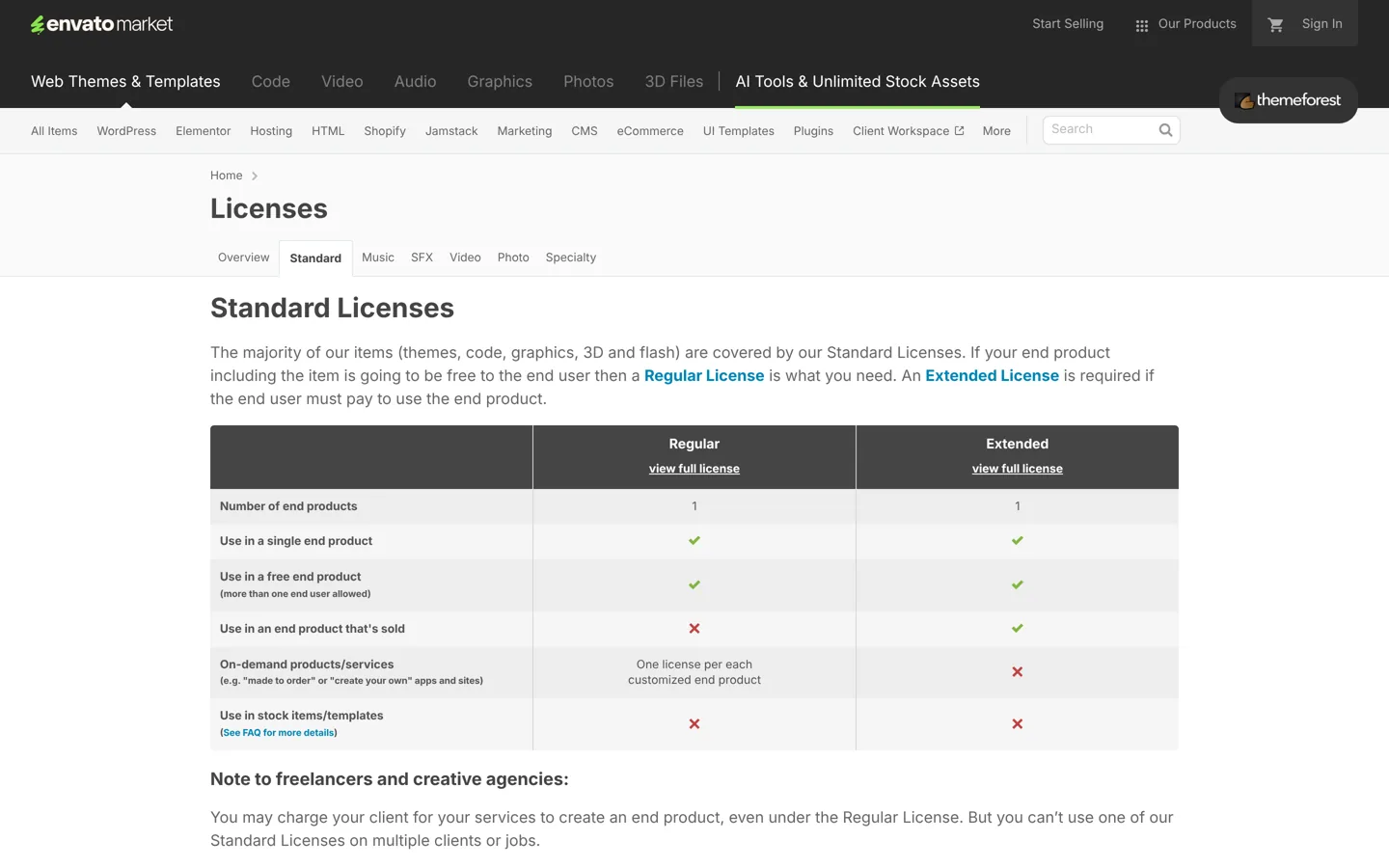
Envato’s Standard Licences cover most themes. The rule on its licence page is simple: if your end product is free to the end user, you need a Regular Licence; if the end user must pay to use the end product, you need an Extended Licence. Both cover one end product.
- A blog, business site or shop: a Regular Licence. Selling your own products through a site doesn’t make the site itself a paid end product.
- A product people pay to use, such as a paid web app built on the item: an Extended Licence.
- Freelancers and agencies: Envato says you may charge clients for your services under the Regular Licence, but you can’t use one licence for several clients or jobs. Buy one per site.
- Templates for resale: neither Standard Licence allows using the item in stock items or templates.
Tip 2: Understand what support covers

Envato’s item support policy explains that a supported item includes support from its author for 6 months from the purchase date, and that you can buy extended support at checkout to raise it to a maximum of 12 months. During that time, the author is expected to answer questions about the item’s features, help with reported bugs and answer questions about bundled third-party assets such as sliders or plugins.
Support doesn’t include customising the theme beyond its described features, installing it on your server or CMS, or fixing hosting and server problems. Some authors offer these as paid services.
After support ends, you still get something: Envato says all items should keep working as described and be protected against major security issues, with authors releasing updates when needed. Feature updates are at the author’s discretion.
Tip 3: Read the item page like a buyer, not a fan
- Last update and changelog: look for regular updates, especially soon after major WordPress releases. A long gap is a warning.
- Sales and ratings: a theme with many sales and many ratings has been tested by more people. Read the low ratings to see what goes wrong.
- Comments: the comments tab shows how quickly and helpfully the author replies. You’ll be writing there too.
- Bundled plugins: premium sliders and page builders bundled with a theme often update only through the theme rather than with their own licence, so check the changelog keeps them current.
- Compatibility: check the listed WordPress version, WooCommerce support and page builder before buying.
- Documentation: good themes link to clear online docs. Envato’s support policy asks buyers to read them first, so they matter.
Tip 4: Test the live preview properly
The preview is a demo with professional photos and perfect text. To see the real theme:
- Open the preview on your phone as well as your computer.
- Run a demo page through PageSpeed Insights and compare a couple of candidates. Demos often load extra scripts, so treat the result as a rough guide.
- Look at a plain blog post and an archive page in the demo, not just the home page.
- Press Tab to move through the page: you should always see where you are, and menus should open with the keyboard.
Tip 5: Know the refund rules before you buy
Envato’s help centre says refunds for Envato Market purchases are possible in certain circumstances, assessed case by case based on the digital nature of the item and the preview available before purchase. Before requesting one, Envato asks you to read the documentation, check the item’s comments, contact the author through the Support tab and confirm you’re using the item for its intended purpose, such as a compatible WordPress version. Requests are reviewed by the author or Envato.
Envato also recommends downloading and saving your item immediately after purchase, because items can be removed from the marketplace. Keep the download and your purchase code somewhere safe.
Tip 6: Ask the author before you buy
ThemeForest item pages have a comments section where you can ask questions before buying. A good author answers clearly, and the answers become part of your due diligence. Useful questions:
- Is the theme tested with the current WordPress version and the latest WooCommerce, if you’ll run a shop?
- Which plugins does it require, and which are optional?
- Does it work with the standard block editor, or does it depend on a specific page builder?
- How are bundled premium plugins updated?
- Can I export my content and keep my layouts if I change theme later?
- Is there a child theme included?
If the questions in the comments go unanswered for weeks, expect the same when you need help.
Tip 7: Avoid the costly mistakes
- Never use “nulled” copies. Pirated versions of ThemeForest themes from other sites often contain malware, can’t be updated and give you no support.
- Don’t rely on the theme for everything. Content built with a theme’s own shortcodes or builder can break if you switch theme. Keep important features in plugins where you can.
- Don’t skip the child theme. If you’ll edit theme files, use a child theme so updates don’t erase your changes.
- Don’t import every demo. Import only the demo you’ll use, then delete the sample content you don’t need.
Buying ThemeForest themes for client sites
If you build sites for clients, the licence rules matter most. Envato allows you to charge the client for your work under a Regular Licence, but each licence covers one end product, so every client site needs its own purchase. A tidy approach is to buy the licence in the client’s name, or on their behalf with a clear handover of the purchase code, so they can keep receiving updates and support after your project ends. Note the purchase date too: the 6 months of support starts when the theme is bought, not when the site launches, so buy it close to the start of the build or add extended support at checkout.
Common problems after installing a ThemeForest theme
- A long list of “required plugins”. Many themes prompt you to install several plugins straight away. Install only those you need for the features you’ll use; each extra plugin is more code to update and secure.
- The demo import stops halfway. Large demos can exceed your hosting’s time or memory limits. Ask your host to raise them for the import, or import a smaller demo. Envato’s support policy says hosting and server issues are outside item support, so your host is the right place to ask.
- No automatic updates. Most ThemeForest themes need you to register your purchase code, or follow the update method in the theme’s documentation, before they update from the dashboard. Do it on day one.
- Slow pages. Turn off theme features and bundled sliders you don’t use, and compress images before you blame the host.
- Layouts break after switching themes. This is the lock-in risk from theme-specific shortcodes and builders, and another reason to choose carefully the first time.
ThemeForest or a theme developer’s own site?
Some popular theme makers sell directly from their own sites as well as, or instead of, a marketplace. Buying direct often means yearly licences with updates for as long as you renew, and sometimes unlimited sites, while ThemeForest usually sells a one-off licence per site with 6 months of support. Compare total cost over the time you’ll use the theme, not just the first price. Envato also runs Envato Elements, a subscription for unlimited downloads of stock assets; check its licence terms before using it for a client site.
After you buy
- Download the theme and save your purchase code.
- Back up your site, then install the theme from Appearance → Themes → Add New Theme → Upload Theme.
- Install only the bundled plugins you need, and register the theme so you receive updates.
- Set up a child theme before you make code changes.
Then add the essentials from our list of the best WordPress plugins.
Questions people ask
Do I need a Regular or Extended Licence on ThemeForest?
A Regular Licence if your end product is free to the end user, such as a blog or business site; an Extended Licence if end users must pay to use the end product.
Can I use one ThemeForest licence on several sites?
No. Each Standard Licence covers one end product, and Envato says you can't use one licence on multiple clients or jobs.
How long is ThemeForest support?
6 months from purchase for supported items, extendable to a maximum of 12 months if you buy extended support.
Do I still get updates after support ends?
Envato says all items should keep working as described and be protected against major security issues; other updates are at the author's discretion.
Can I get a refund on ThemeForest?
Sometimes. Envato assesses refunds case by case; first try the documentation, comments and the author's support, then submit a request.
Are nulled ThemeForest themes safe?
No. Pirated copies often contain malware, can't be updated and come with no support.
Sources
- Envato Standard Licenses themeforest.net · checked October 12, 2026
- Envato Market item support policy themeforest.net · checked October 12, 2026
- Can I get a refund for an Envato Market purchase? (Envato Help) help.market.envato.com · checked October 12, 2026

Building websites since 2006: 500+ web projects of every size and $300K+ in website deals sold or brokered. Founder of A Digital Motive and DigiFlippers. I share the whole process here, plainly.
Founder of A Digital Motive and DigiFlippers