- Decide your must-have features before you look at any demo.
- Block themes use the Site Editor for every part of the site; classic themes keep the Customizer.
- WordPress.org lists 8,772 themes; 1,906 are tagged for full site editing.
- Directory themes must keep tracking opt-in and can't install plugins automatically.
- "Accessibility ready" is a minimum standard, not full WCAG AA, says WordPress.org.
To choose a WordPress theme, start from what your site needs, decide between a block theme and a classic theme, search a trustworthy source, then check each candidate’s update history, installs, ratings, speed, mobile layout, accessibility and support before you commit. This guide walks through how to choose a WordPress theme step by step, using what the WordPress.org theme directory and its review rules actually tell you (checked on 12 October 2026). It doesn’t recommend specific themes; our list of the best WordPress themes does that.

Step 1: Write down what your site needs
Most theme mistakes start with browsing demos before deciding what you need. Spend ten minutes on a short list first:
- Type of site: a blog, a business site, a shop, a portfolio, an affiliate or niche site. (For affiliate sites, see our guide to themes for affiliate marketing.)
- Layout: a sidebar or not, a magazine-style home page or a simple list of posts, a wide or narrow reading column.
- Features you’ll really use: a header with a search box, a newsletter box after posts, WooCommerce styling, page-builder support.
- Who will edit it: you alone, a team, or a client who needs something simple.
- Budget: free, a one-off payment, or a yearly licence for updates and support.
Keep the list in front of you. A theme that’s beautiful but doesn’t do three of these things is the wrong theme.
Step 2: Decide between a block theme and a classic theme
WordPress.org’s documentation explains that block themes, introduced in WordPress 5.9, use blocks for every part of the site, including menus, header and footer, which you edit in the Site Editor. Instead of widgets, you place blocks anywhere, and the Customizer isn’t available unless a plugin or theme needs it. Classic themes keep the Customizer and the theme’s own settings panels.
- Choose a block theme if you want to design everything visually in WordPress itself and use fewer plugins.
- Choose a classic theme if you prefer ready-made settings, need a specific page builder, or rely on widgets.
The WordPress.org directory lists 8,772 themes, and 1,906 of them carry the “full site editing” tag used for block themes. Our themes list compares block and classic themes in more detail.
Step 3: Search a trustworthy source

Start with the WordPress.org theme directory (Appearance → Themes → Add New Theme in your dashboard). Every theme there passes a review against published requirements. Among them: themes must be GPL-compatible; any tracking or collection of user data must be off by default and opt-in only; themes may only recommend plugins hosted on WordPress.org and can’t install them automatically; and every theme needs a skip link so keyboard and screen reader users can jump to the content.
Premium themes are sold by their developers or on marketplaces. They can be excellent, but they don’t go through the same review, so check the developer’s track record, refund policy and licence terms yourself. If you shop on ThemeForest, read our tips for choosing a theme on ThemeForest first. Never install a “nulled” (pirated) copy of a premium theme: these often contain malware and never receive updates.
Step 4: Check the signals on the theme’s page

- Last updated: a theme updated in recent months is being maintained. One that hasn’t changed in a year or more may fall behind new WordPress versions.
- Active installations: widely used themes have had their problems found and fixed. A new theme isn’t bad, but it’s less proven.
- Ratings: look at the number of ratings as well as the average. A 5.0 from three people tells you less than a 4.7 from a thousand.
- Support forum: are questions answered, and how quickly? This is the support you’ll get too.
- Tags: filter by features such as “full site editing”, “accessibility ready” or the layout you want.
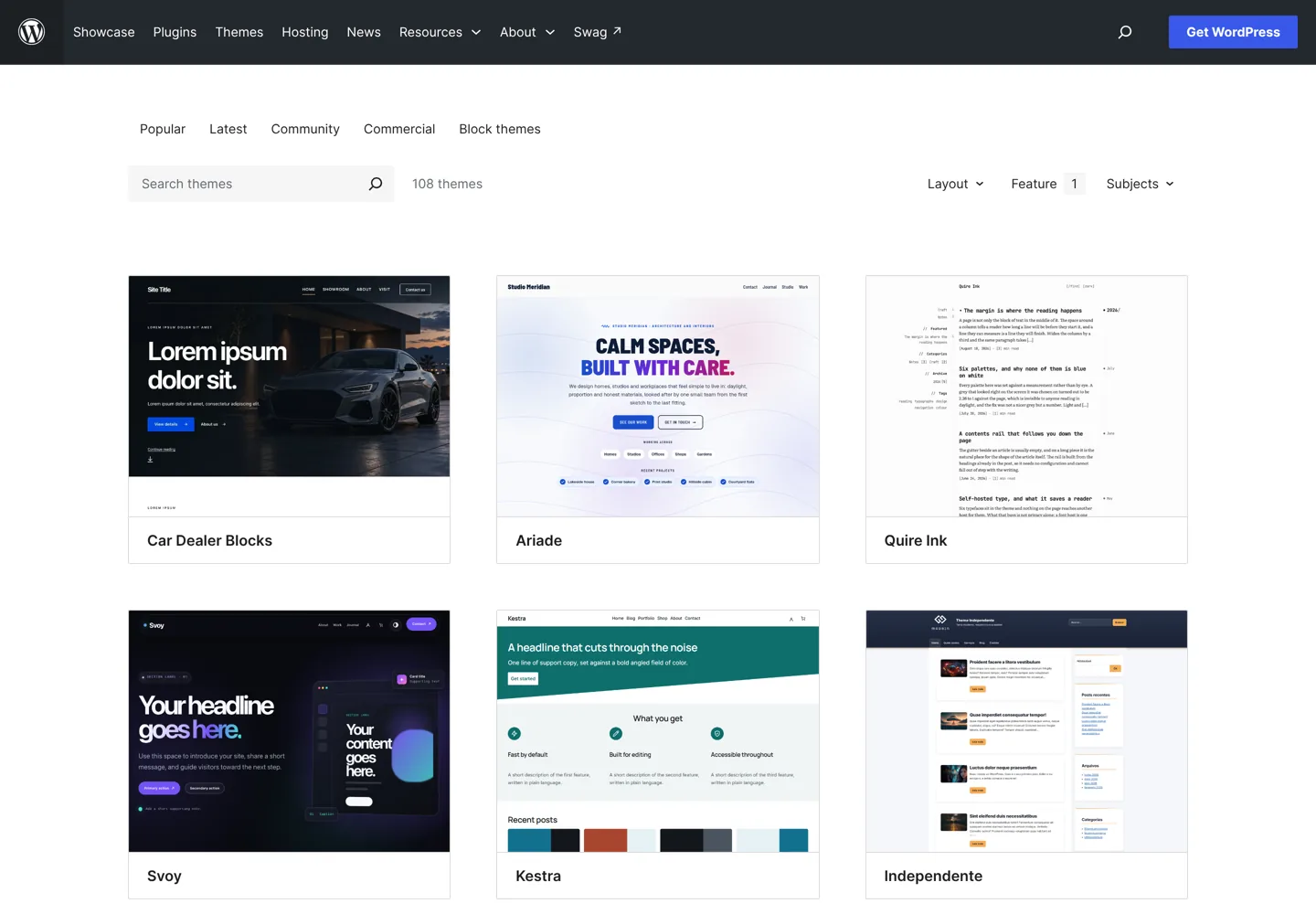
Step 5: Test it with your own content
Demos use professional photos and carefully written text, so they hide a theme’s weaknesses. Test the theme on a staging copy of your site, or preview it with Appearance → Themes → Live Preview, using a real post with headings, images, a list and a table.
- Speed: run that post through Google’s PageSpeed Insights and compare the mobile results between themes. Remember that hosting, images and plugins also affect speed.
- Phones: open the post on a real phone. Check the menu, the text size, how tables behave and whether buttons are easy to tap.
- Readability: line length, font size and contrast matter more than decoration on a blog.
Step 6: Check accessibility
An accessible theme works for more readers, including people using a keyboard or screen reader. In the directory, themes with the “accessibility ready” tag (108 themes when we checked) have passed an extra manual review. WordPress.org is careful to say this doesn’t mean the theme meets WCAG AA in full; it means the theme reaches the minimum standard set by the theme review team.
Quick checks you can do yourself:
- press Tab on the home page: a “skip to content” link should appear first;
- keep pressing Tab: you should always see where you are;
- check that text has strong contrast against its background;
- make sure the menu works with the keyboard alone.
Step 7: Read the support, licence and upgrade terms
- Free version vs paid: what’s in the free theme, and what’s only in the paid add-on? Many popular themes put the paid features in a separate plugin, so your design stays if you stop paying.
- Licence: how many sites, and what happens to updates when the licence ends.
- Refunds: how long you have to change your mind.
- Lock-in: shortcodes and theme-specific page layouts can stop working if you switch theme later. Prefer themes that use standard WordPress blocks.
How to choose a WordPress theme for your kind of site
The steps are the same for every site, but what you weigh most changes:
- A blog: reading comfort comes first. Look for a clean single-column or one-sidebar layout, a comfortable font size, clear headings and fast pages. Fancy sliders and animations rarely help a blog.
- A business site: you need a strong home page, clear calls to action, and simple ways to add services, testimonials you’ve really received, and a contact page. Starter templates save time here.
- An online shop: check that the theme supports WooCommerce, and test product, cart and checkout pages, not just the home page. Speed on product pages matters most.
- A portfolio: large images and flexible galleries, but still with good image compression and alt text.
- A site for a client: pick something they can edit without breaking, with long-term support, and avoid themes whose features vanish if a licence lapses.
Warning signs in a theme
- It asks you to install a long list of plugins before it looks like the demo. Each one is more code to update and secure.
- Everything is built with the theme’s own shortcodes or builder, so switching later means rebuilding pages.
- No changelog or update history, or an update gap of more than a year.
- Support questions go unanswered in the forum or on the developer’s site.
- Heavy demo imports that add dozens of pages, images and settings you’ll have to clean up.
- Tracking or upsell notices you can’t turn off. Directory themes must keep tracking opt-in; anything else deserves a closer look.
One or two of these may be acceptable in a theme that’s otherwise strong. Several together are a reason to move on to the next candidate on your list.
A simple scorecard
| Question | 0 | 2 |
|---|---|---|
| Covers my must-have features? | Few | All |
| Updated recently? | Over a year ago | In recent months |
| Widely used and well rated? | Few installs or ratings | Many installs, many good ratings |
| Fast on mobile with my content? | Slow | Fast |
| Keyboard and contrast checks? | Fail | Pass |
| Support answers questions? | Rarely | Quickly |
| Easy to leave later? | Heavy lock-in | Standard blocks |
The theme with the highest total, not the prettiest demo, is usually the right choice.
How long should choosing a theme take?
An hour or two is enough for most blogs: ten minutes on your needs list, half an hour shortlisting three to five themes in the directory, and the rest testing your top two with a real post on a staging copy. Spending days comparing demos rarely leads to a better choice, because the theme matters less than your content, your hosting and how fast your pages load. A good, well-maintained theme you can live with for years beats a perfect one you’ll replace in six months.
If you’re torn between two finalists, pick the one that’s lighter and easier to leave. You can add features with plugins later, but undoing a heavy theme’s custom layouts takes far longer.
After you choose
Install the theme, set up your header, menu and colours, and keep customisations in the theme’s settings or a child theme so updates don’t overwrite them. Back up the site before switching themes on a live blog. Then add the essentials from our list of the best WordPress plugins, and if you’re starting from scratch, our WordPress guide for beginners covers the rest.
Questions people ask
How do I choose a WordPress theme?
List your needs, choose block or classic, search WordPress.org or a reputable developer, check updates, installs, ratings and support, test speed, phones and accessibility with your own content, then compare your shortlist.
Should I use a block theme or a classic theme?
A block theme if you want to design every part of the site in the Site Editor; a classic theme if you prefer ready-made settings, widgets or a particular page builder.
Are free WordPress themes safe?
Themes in the WordPress.org directory pass a review against published requirements, including opt-in-only tracking. Avoid free copies of premium themes from unofficial sites.
What does accessibility ready mean?
The theme passed an extra manual review against WordPress.org's accessibility guidelines. WordPress.org says it doesn't mean full WCAG AA conformance.
Does my theme affect SEO?
Indirectly: speed, mobile layout, clean headings and accessibility all affect readers and search. Content and links matter more than the theme itself.
Should I buy a premium theme?
Only if it does something you need that free themes don't. Check the developer's update record, refund policy and licence first.
Sources
- Block themes (WordPress.org documentation) wordpress.org · checked October 12, 2026
- Theme review requirements (WordPress.org) make.wordpress.org · checked October 12, 2026
- Accessibility-ready themes (WordPress.org Theme Handbook) make.wordpress.org · checked October 12, 2026
- WordPress.org theme directory wordpress.org · checked October 12, 2026

Building websites since 2006: 500+ web projects of every size and $300K+ in website deals sold or brokered. Founder of A Digital Motive and DigiFlippers. I share the whole process here, plainly.
Founder of A Digital Motive and DigiFlippers