
Some links on this page are affiliate links. If you buy through them I may earn a commission, at no extra cost to you. It never changes a rating. Read the disclosure
- A Domain property covers http, https, www and every subdomain, and is verified with a DNS record.
- The Performance report shows clicks, impressions, CTR and average position for up to 16 months.
- URL Inspection shows Google's last indexed version of a page; Test live URL checks it as it is now.
- Many 'Not indexed' URLs are intended: read the reason before you fix anything.
- Ten minutes a week and an hour a month keeps most sites on track.
Google Search Console is Google’s free tool for website owners. It shows which searches bring people to your site, how often your pages appear and get clicked, which pages Google has indexed and why others aren’t, and whether Google has found problems such as hacking, spam penalties or slow pages. This guide walks through every report you’ll use, in the order you’ll need them. Every menu name, limit and definition below comes from Google’s own Search Console Help and Search Central documentation, checked on 12 October 2026.
I’ve worked on SEO since 2006 and used Search Console, and Google Webmaster Tools before it was renamed, on my own and client sites ever since; it’s still the first place I look when traffic changes. If you’re new to search, read SEO basics: how search works first; if your site runs on WordPress, the WordPress SEO tutorial covers connecting Search Console from inside WordPress, so this guide concentrates on using the tool itself.

What is Google Search Console?
Search Console is a set of reports and tools about your website’s presence in Google Search. Its reports show how your site performs in Google Search results, which pages Google can find and index, and problems that only a verified site owner should see. It costs nothing; the only requirement is a Google account.
Search Console works by property, Google’s word for a website (or part of one) you’ve added and proven you own. You can have up to 1,000 properties in one account and switch between them with the property selector at the top left.
Search Console vs Google Analytics
The two tools are often confused because both show traffic. In short: Search Console shows what happens in Google Search, before someone reaches your site; Google Analytics shows what visitors do on your site, from every source. Google’s own Site Kit page puts it the same way: Search Console “measures your site’s Google Search traffic and performance”, while Analytics “tells you how users find, use, and engage with your site”.
| Question | Search Console | Google Analytics |
|---|---|---|
| Which searches showed my pages? | Yes (queries, impressions, position) | No |
| Is Google indexing my pages? | Yes | No |
| What do visitors do after they arrive? | No | Yes (pages viewed, engagement, conversions) |
| Traffic from social, email, ads? | No, Google Search, Discover and News only | Yes |
| How is data collected? | From Google’s own search data | A tracking script on your pages |
The numbers never match exactly. Google lists the reasons: Search Console leaves out some rare queries for privacy, counts days in Pacific Time, and is usually 2 to 3 days behind, while Analytics only counts visitors whose browsers run JavaScript. Use both, and compare trends rather than totals. Our blog traffic checker guide shows where each tool fits.
How to add and verify your site in Google Search Console
Open Search Console, choose + Add property from the property selector, then pick one of two website property types.
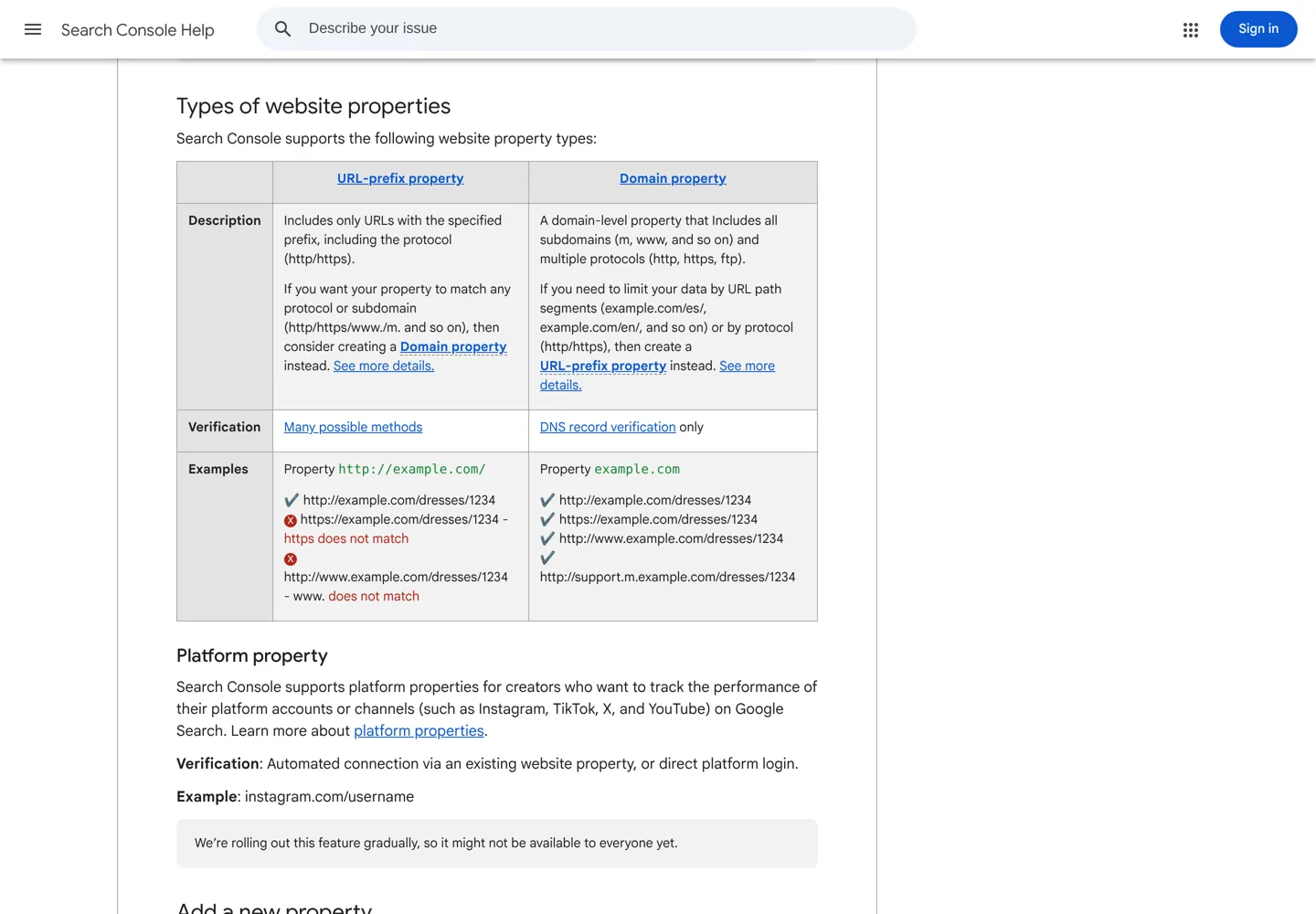
Domain property or URL-prefix property?
| Domain property | URL-prefix property | |
|---|---|---|
| You enter | example.com (no https://, no www) | https://www.example.com/ (exact start of the address) |
| Covers | Every subdomain (www, m, blog…) and both http and https | Only addresses that start with exactly that prefix |
| Verification | DNS record only | Several methods: HTML file, HTML tag, Google Analytics, Google Tag Manager, DNS |
| Best for | Your main property: the whole site in one place | A section such as /blog/, or when you can’t edit DNS |
My advice: create a Domain property for the whole site, and add URL-prefix properties later only if you want separate reports for a section. Once one property is verified, Google auto-verifies the child properties you add under it with the same method.
Verify a Domain property with a DNS TXT record
- Enter your domain (for example
example.com) under Domain and click Continue. Search Console shows a TXT record that starts withgoogle-site-verification=. - If your domain provider appears in the list, choose it and click Start verification; you sign in to the provider and the record is added for you.
- Otherwise, sign in to the company where you manage your DNS (your registrar, such as Namecheap, your host or a DNS service such as Cloudflare) and add a new TXT record. Leave the Host/Name field blank or enter
@, as your provider’s help says, and paste the value from Search Console. - Back in Search Console, click Verify. Google says a manually added record can take up to two or three days to start working, so if it fails, wait a day and try again.
- Never delete the record afterwards: Search Console keeps checking it, and you lose access if it disappears.
Rarely, your setup needs a CNAME record instead; Search Console offers both and Google’s verification help explains how to tell which applies.
Other ways to verify (URL-prefix properties)
- HTML tag: paste a
<meta name="google-site-verification">tag into the<head>of your home page. On WordPress, SEO plugins such as Rank Math and Yoast SEO have a field for it. - HTML file: upload the file Search Console gives you to your site’s root folder, unchanged.
- Google Analytics or Google Tag Manager: works instantly if your site already uses one of them with an account you can manage.
- Site Kit by Google: Google’s official WordPress plugin can verify the site for you and show Search Console data in your WordPress dashboard. Google’s help notes it’s the only plugin officially sponsored by Google.
You can add more than one method in Settings → Ownership verification, which is a good safety net: if a theme change removes the HTML tag, the DNS record still keeps you verified.
When does data appear? Google starts collecting data as soon as anyone adds the property, even before verification, but it takes a few days for data to show. If nothing appears after several days, check you didn’t add http instead of https on a URL-prefix property.
The Performance report: clicks, impressions, CTR and position
The Performance report (Performance → Search results) is the one you’ll open most. By default it shows the last three months of clicks and impressions for web search.

It has four metrics, which you switch on and off by clicking the boxes above the chart:
- Clicks: how many times someone clicked through to your site from Google Search results.
- Impressions: how many times your site appeared in results.
- CTR (click-through rate): clicks divided by impressions.
- Average position: the average position of your topmost result. In the chart it’s for the whole site; in the table it’s for that query or page.
One detail matters when you read the numbers: when grouped by query, country, device or date, data is counted per property, so two of your pages in the same results count as one impression. When grouped by page, each URL counts separately. That’s why totals in the chart and table can differ.
Queries, pages and the other tabs
The tabs above the table decide how the data is grouped: Queries, Pages, Countries, Devices, Search appearance and Dates. Click any row to filter the whole report by it; for example, click a query, then open the Pages tab to see which of your URLs Google showed for that search. Queries are the raw material for keyword research: they’re what real people typed before they found you.
Some limits to know:
- The table shows at most 1,000 rows; rarer rows are still counted in the chart totals.
- Anonymized queries: some queries are left out to protect searchers’ privacy. They’re included in chart totals unless you filter by query.
- Data goes back 16 months; choose “Last 16 months” in the date filter to see seasonal patterns. To keep more history, Google suggests the Search Analytics API or bulk data exports.
- Daily data is shown in Pacific Time, and the newest day can be preliminary (a dotted line) and change within hours.
Filters and comparing dates
Click + Add filter to narrow the report by query, page, country, device or search appearance. For queries and pages you can choose “containing”, “not containing” or Custom (regex), which uses RE2 regular expressions. For example, the regex (how|what|why) shows question-style searches.
To compare, open the Date filter, choose Compare and pick two periods, such as last 28 days against the previous period. The table then adds a Difference column. You can run one comparison at a time. Google suggests the Weekly or Monthly view for date comparisons, so a quiet weekend doesn’t distort the result. There’s also a branded and non-branded queries filter, which separates searches for your site’s name from everything else; Google says it isn’t available for sites with few impressions.
Worked example: find quick wins in 10 minutes
- Set the date range to the last 3 months and turn on all four metrics.
- Open the Pages tab and sort by impressions.
- Look for pages with many impressions but a low CTR. Google’s help says a low CTR can mean searchers see your page but don’t think it answers their query.
- Click one of those pages, then open the Queries tab to see what people searched.
- Rewrite the page’s title and description to match those searches honestly, and check the content answers them; our on-page SEO checklist covers the details, and search intent explains how to tell what searchers expect.
- Note the date, then compare the four weeks after the change with the four weeks before.
Average position is an average over every search and location, so it moves around. For daily rankings of chosen keywords, use one of the rank tracking tools we compared, or Semrush‘s position tracking.
URL Inspection: check one page
Paste any full URL from your property into the search bar at the top of Search Console, or click the inspect icon next to a URL in any report. You’ll see Google’s information about that page.

- The top verdict (“URL is on Google”, “URL is on Google, but has issues” or “URL is not on Google”) comes from the last indexed version, not the live page. Google stresses that “URL is on Google” doesn’t guarantee the page appears for any search.
- Page indexing shows how Google found the URL (sitemaps, referring page), the Last crawl date, whether crawling and indexing were allowed, and the User-declared canonical next to the Google-selected canonical. If they differ, Google is treating the page as a duplicate of another URL.
- Test live URL fetches the page as it is right now and can show a screenshot of how Google renders it. It doesn’t test everything: duplicate and canonical decisions, for example, only appear in the indexed result.
- Request indexing adds the URL to Google’s crawl queue after a quick live check. Google says indexing typically takes a day or so but can take a week or two, and there’s a daily limit per property. Asking twice doesn’t make it faster.
Use Request indexing for a new post or an important update, not for every page. For many pages at once, Google recommends a sitemap with updated <lastmod> dates instead.
The Pages report: which pages are indexed and why others aren’t
Under Indexing → Pages, the Page indexing report shows how many known URLs are indexed and not indexed, with a table titled “Why pages aren’t indexed”. Each reason has a Source (Website or Google); in general, only issues with the source “Website” are yours to fix.

Don’t panic at a high “Not indexed” number. Google says plainly that you shouldn’t expect every URL to be indexed: redirects, duplicates, feeds and pages you’ve marked noindex are meant to stay out. Google even suggests that sites with fewer than 500 pages may not need this report at all, and can check key pages with a site: search and URL Inspection instead. What matters is that your important pages are indexed.
Here’s what the most common reasons mean at a glance:
| Reason | What it means | What to do |
|---|---|---|
| Crawled – currently not indexed | Google crawled the page but chose not to index it for now | Improve, merge or remove the page: see how to fix Crawled – currently not indexed |
| Discovered – currently not indexed | Google knows the URL but hasn’t crawled it yet | Link to it from relevant pages and keep it in your sitemap |
| Page with redirect | The URL redirects elsewhere; only the target can be indexed | Nothing, if the redirect is intended |
| Alternate page with proper canonical tag | The page points to another canonical, which is indexed | Nothing |
| Duplicate without user-selected canonical | Google sees a duplicate and picked another URL as canonical | Set a canonical, or make the pages genuinely different |
| Duplicate, Google chose different canonical than user | Google disagrees with the canonical you set | Inspect both URLs; merge or differentiate them |
| URL marked ‘noindex’ | The page tells Google not to index it | Fine if intended; otherwise remove the noindex |
| Not found (404) | The URL returns a 404 | Fine for deleted pages; 301-redirect pages that moved |
| Soft 404 | The page looks like an error or empty page but returns 200 | Return a real 404, or add real content |
| URL blocked by robots.txt | robots.txt stops Google crawling it | Unblock it if you want it indexed; use noindex (not robots.txt) to keep it out |
| Server error (5xx) | Your server failed when Google asked for the page | Check hosting and firewall settings with your host |
When you’ve fixed every example of an issue, open it and click Validate fix. Google rechecks the affected URLs and emails you the result; validation typically takes up to about two weeks. Click it once and wait for the result.
The Sitemaps report
A sitemap is a file listing the pages you want Google to know about. WordPress and SEO plugins create one automatically. In Indexing → Sitemaps, paste its address (for example sitemap_index.xml or wp-sitemap.xml) under “Add a new sitemap” and click Submit. You need owner permission to submit.
Each sitemap then shows one of three statuses: Success, Couldn’t fetch or Sitemap had X errors. Google rereads the sitemap on its own schedule, so you only need to resubmit after big changes. Two points from Google’s help surprise people: removing a sitemap from the report doesn’t make Google forget its URLs, and the report shows only sitemaps you submitted there or through the API.
Core Web Vitals and HTTPS
Two reports cover the experience of using your pages. The Core Web Vitals report rates groups of similar pages as Good, Need improvement or Poor for mobile and desktop, using real visitors’ data from the Chrome UX Report over the last 28 days. A group’s status is its worst metric. The targets, from Google’s web.dev, are:
- LCP (Largest Contentful Paint): the main content loads within 2.5 seconds.
- INP (Interaction to Next Paint): the page responds to taps and clicks within 200 milliseconds.
- CLS (Cumulative Layout Shift): 0.1 or less, so the layout doesn’t jump around.
Small sites often see “No data available”, which means there aren’t enough real visits yet; test single pages with PageSpeed Insights or Lighthouse instead. Fixes for WordPress are in our WordPress speed optimization guide.
The HTTPS report shows how many of your indexed URLs are HTTP and how many are HTTPS, and for each HTTP URL explains why its HTTPS version couldn’t be indexed, with issues such as “HTTPS has invalid certificate” or “Sitemap points to HTTP”. It’s available only for Domain properties and https URL-prefix properties. Ideally, Google says, you should see no HTTP URLs at all.
Manual actions and Security issues
The Manual actions and Security issues reports are the ones you hope stay empty; each shows a green check mark when there’s nothing to report, and the Overview page flags either problem too.
- Manual actions: a human reviewer at Google found pages that break Google’s spam policies (for example unnatural links or thin, scraped content). Some or all of the site can drop out of results.
- Security issues: Google found hacked content, malware or “social engineering” (content that tricks visitors). Visitors may see a warning in results or in the browser.
In both cases the fix is the same: read the issue’s details, fix it on every affected page (a partial fix earns no partial return), then click Request Review and explain what was wrong, what you did and the result. Google says reviews can take several days or weeks, and you shouldn’t resubmit while one is pending. Our WordPress security checklist helps prevent the second kind.
If you buy a website, check both reports in the seller’s Search Console before you pay. I’ve bought, sold and brokered many websites, and I run DigiFlippers, my own marketplace for buying and selling them; a past manual action is one of the first things I ask about. Google’s help even covers this case: fix the issues and say in your reconsideration request that you recently acquired the site. Our guide to buying a blog lists the other checks.
The Links report
The Links report shows a sample of the links Google has found to and within your site, in four tables: external Top linked pages, Top linking sites and Top linking text, plus internal Top linked pages. Each table shows up to 1,000 rows, and Google notes the report isn’t a complete list and doesn’t say which links are nofollow.
Use it to confirm your best pages get links, to spot unfamiliar or spammy linking sites, and to see which of your pages have few internal links. Our internal linking strategy explains how to fix that. For a fuller picture of backlinks, compare the best backlink checker tools, such as Ahrefs and Semrush.
Removals
The Removals tool (Indexing → Removals) hides a URL from Google Search for about six months. Use Temporary Removals → New Request when something must come out of results quickly, such as a page with private information, and choose “Temporarily remove URL” or “Clear snippet in search”. It doesn’t delete anything: to remove a page for good, also delete it (404 or 410), add noindex or put it behind a password before the six months end.
Google lists what not to use it for: cleaning up old 404 pages (they drop out by themselves), fixing duplicates (use canonicals) or moving content (use redirects).
Users and permissions
In Settings → Users and permissions, an owner can click Add user, enter a Google account and choose a role:
- Owner: full control, including adding users. A verified owner proved ownership with a token (DNS record, HTML tag or file); a delegated owner was given ownership by another owner.
- Full user: sees all data and can take some actions, such as requesting indexing.
- Restricted user: sees most data, view only.
Give a freelancer or agency Full user access rather than ownership, and remove users when the work ends. If you’re taking over a site, verify yourself, then remove the old owners’ verification tokens.
A weekly and monthly Google Search Console routine
Google’s help says many sites need only a quick check-up once a month unless it alerts you to a problem. I check a little more often on sites that are growing:

- Weekly (10 minutes): open Overview and any messages; compare the last 7 days of Performance with the previous 7; inspect posts you published that week.
- Monthly (an hour): find queries and pages with impressions but few clicks and improve them; read the Pages report reasons for your important pages; check Core Web Vitals and HTTPS; look for new linking sites.
- After big changes (a redesign, a host move, new permalinks): test key URLs live, confirm the sitemap shows Success, and validate any fixes.
Common Search Console mistakes
- Verifying only one version of the site (say http://example.com) and missing data from https or www. A Domain property avoids this.
- Removing the verification record or tag after verifying. Search Console keeps checking and you’ll lose access.
- Clicking Request indexing over and over. Repeat requests don’t speed anything up and use up your daily quota.
- Treating every “Not indexed” URL as an error. Read the reason first; many are intended.
- Using the Removals tool to clean up old pages. It hides pages temporarily; redirects, noindex and 404s are the permanent tools.
- Judging changes too soon. Data runs 2 to 3 days behind and positions move daily, so compare whole weeks.
- Expecting Search Console and Analytics to match. They measure different things in different ways.
- Forgetting Bing. Bing Webmaster Tools can import the sites verified in your Search Console account (My Sites → Import), and they arrive already verified.
Where to go from here
Set up the property today, give it a week to collect data, then work through the Performance report’s quick wins. When a page you care about isn’t indexed, the URL Inspection tool and the Pages report will tell you why, and our guide to fixing “Crawled – currently not indexed” takes you through the most common case. If you’d rather have someone set up and monitor Search Console for you, my agency, A Digital Motive, does this for client sites.
Questions people ask
Is Google Search Console free?
Yes. Search Console is free, and the only requirement is a Google account. You must verify that you own a site before you can see its data.
What is the difference between Google Search Console and Google Analytics?
Search Console shows how your site appears in Google Search: queries, impressions, clicks, position and indexing. Google Analytics shows what visitors do on your site, from every traffic source. Most site owners use both.
Should I choose a Domain or URL-prefix property?
Choose a Domain property for your whole site if you can add a DNS record: it covers http, https, www and all subdomains. Use a URL-prefix property for one section or when you can't edit DNS.
How long does Search Console take to show data?
Google starts collecting data as soon as the property is added, but it takes a few days to appear. After that, Performance data is usually 2 to 3 days behind.
How far back does Search Console data go?
The Performance report keeps 16 months of data. To keep more, Google suggests exporting it with the Search Analytics API or bulk data export.
Does Request indexing make Google index a page?
No. It adds the page to Google's crawl queue; Google says indexing usually takes a day or so but can take a week or two, and isn't guaranteed. Requesting the same URL again doesn't speed it up.
Why does Search Console show different numbers from Google Analytics?
They count different things. Search Console leaves out some rare queries for privacy, uses Pacific Time and runs 2 to 3 days behind, while Analytics only counts visitors whose browsers run its JavaScript.
Sources
- Add a website or platform property to Search Console (Search Console Help) support.google.com · checked October 12, 2026
- Verify your site ownership (Search Console Help) support.google.com · checked October 12, 2026
- Performance report (Search results): Overview and basic setup support.google.com · checked October 12, 2026
- Performance report: Advanced filtering and comparison support.google.com · checked October 12, 2026
- Performance report: Troubleshooting data discrepancies support.google.com · checked October 12, 2026
- URL Inspection tool (Search Console Help) support.google.com · checked October 12, 2026
- Page indexing report (Search Console Help) support.google.com · checked October 12, 2026
- Sitemaps report (Search Console Help) support.google.com · checked October 12, 2026
- Core Web Vitals report (Search Console Help) support.google.com · checked October 12, 2026
- HTTPS report (Search Console Help) support.google.com · checked October 12, 2026
- Manual actions report (Search Console Help) support.google.com · checked October 12, 2026
- Security issues report (Search Console Help) support.google.com · checked October 12, 2026
- Links report (Search Console Help) support.google.com · checked October 12, 2026
- Removals and SafeSearch reports tool (Search Console Help) support.google.com · checked October 12, 2026
- Managing owners, users, and permissions (Search Console Help) support.google.com · checked October 12, 2026

Building websites since 2006: 500+ web projects of every size and $300K+ in website deals sold or brokered. Founder of A Digital Motive and DigiFlippers. I share the whole process here, plainly.
Founder of A Digital Motive and DigiFlippers