Some links on this page are affiliate links. If you buy through them I may earn a commission, at no extra cost to you. It never changes a rating. Read the disclosure
- Most hacks come through outdated plugins and guessed passwords, so updates and 2FA come first.
- WordPress core doesn't include two-factor login; add it with a plugin.
- Delete plugins and themes you don't use; deactivated files can still be attacked.
- DISALLOW_FILE_EDIT in wp-config.php turns off the dashboard file editors.
- Hiding the login URL or version isn't security on its own.
This WordPress security checklist puts the fixes in the order that matters: keep WordPress, plugins and themes updated, use strong unique passwords with two-factor login, give people only the access they need, delete what you don’t use, add a firewall and login limits, and keep tested off-site backups. Everything below follows WordPress.org’s own hardening guide, checked on 12 October 2026.
I’ve been building and looking after WordPress sites since 2006, across more than 500 web projects, and the sites that get into trouble are rarely the ones with an exotic setup. They’re the ones with a plugin nobody updated, an old admin account nobody removed, or no backup when something went wrong. WordPress.org puts it well: security is “risk reduction, not risk elimination”. This checklist is how you reduce the risk without becoming a security engineer.
If you’re new to WordPress, start with our WordPress guide for beginners; this page assumes your site is already running.

Why WordPress sites get hacked
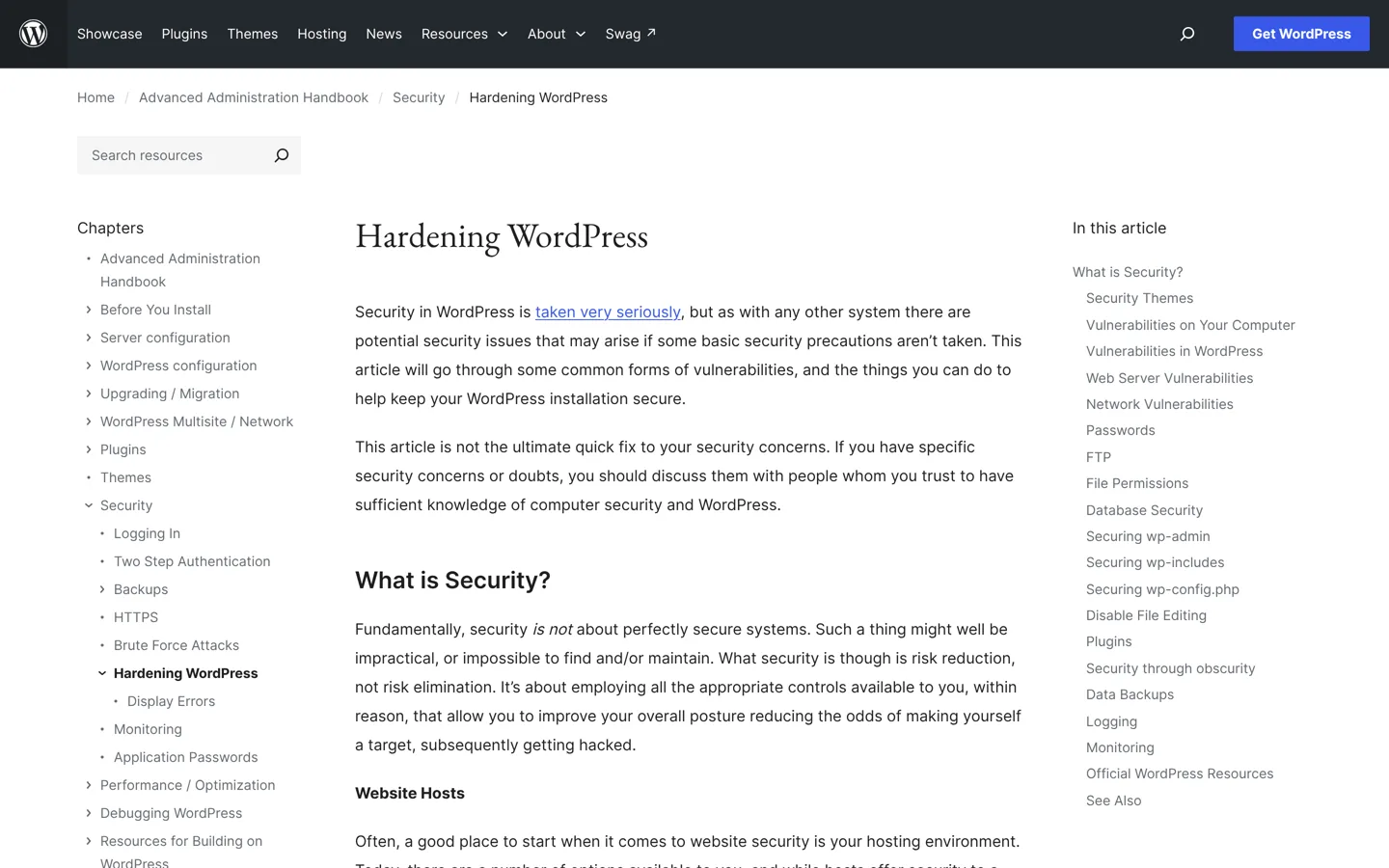
WordPress.org’s hardening guide says the most common attacks fall into two groups: requests aimed at known holes in outdated plugins and software, and “brute force” password guessing. Hacks are rarely caused by the server itself; most come through the application you are responsible for: WordPress, its plugins, its themes and its user accounts.
That’s good news, because both groups are cheap to defend against. Updates close known holes, and strong passwords with two-factor authentication defeat password guessing. Your host looks after the server; the rest of this list is your side of the job.
The WordPress security checklist, in priority order
| Step | What to do | Where |
|---|---|---|
| 1. Updates | Core, plugins and themes; auto-updates on | Dashboard → Updates, Plugins |
| 2. Passwords | Long, unique, from a password manager | Users → Profile |
| 3. Two-factor login | For every administrator and editor | A 2FA plugin |
| 4. User roles | Least privilege; no “admin” username | Users |
| 5. Clean up | Delete unused plugins and themes | Plugins, Appearance → Themes |
| 6. Trusted sources | WordPress.org or well-known vendors only | Before every install |
| 7. HTTPS | SSL certificate; admin over HTTPS | Hosting, wp-config.php |
| 8. Firewall | Host, CDN or plugin firewall | Hosting, Cloudflare, plugin |
| 9. Login protection | Limit attempts; handle XML-RPC | Firewall or plugin |
| 10. Files | Right permissions; disable file editing | SFTP, wp-config.php |
| 11. Hosting | Current software, backups, isolation | Your host |
| 12. Backups | Automatic, off-site, tested | Plugin or host |
| 13. Monitoring | Activity log, file changes, Search Console | Plugin, Google |
1. Keep WordPress, plugins and themes updated
Updates are the single most important item. WordPress.org explains why: once a security fix is released, the details needed to exploit the old version are “almost certainly in the public domain”, so an out-of-date site is an easy target. Older versions of WordPress don’t get security fixes at all.
- WordPress core: minor releases (maintenance and security) update automatically by default, and since WordPress 5.6 new installations update major releases automatically too. Check Dashboard → Updates to see your setting, and don’t switch automatic updates off: WordPress.org says disabling them is “strongly discouraged”.
- Plugins and themes: since WordPress 5.5 you can turn on auto-updates plugin by plugin (the “Automatic updates” column on the Plugins screen, or in bulk) and theme by theme. WordPress checks twice a day and emails you after each auto-update.
- Premium plugins and themes: enter your licence key, or they won’t receive updates.

Auto-updates are safest with backups running, so you can roll back if an update breaks something. If you run a shop or a complex site, test big updates on a staging copy first.
2. Use strong, unique passwords and a password manager
WordPress shows a strength meter whenever you set a password. WordPress.org’s advice is to avoid anything based on your name, username or site name, dictionary words, short passwords and passwords made only of letters or only of numbers. A password manager such as Bitwarden or 1Password creates long random passwords and remembers them, so every account (WordPress, hosting, email, SFTP, database) gets its own.
Unique matters as much as strong: if one service you use leaks its passwords, attackers try the same email and password on other sites. Wordfence’s login security, for example, can block administrator logins that use known compromised passwords.
3. Turn on two-factor authentication
Two-factor authentication (2FA) asks for a second proof, usually a six-digit code from an authenticator app, after your password. WordPress.org recommends it for every administrator and notes that WordPress core doesn’t include it, so you add it with a plugin:
- Two Factor, published under the WordPress.org account, offers authenticator-app codes, email codes and ten single-use backup codes. Each user sets it up under Users → Profile.
- Wordfence‘s free plugin includes 2FA with any authenticator app, passkeys, a login CAPTCHA and XML-RPC options.
- Kadence Security (formerly iThemes Security) and Limit Login Attempts Security also include 2FA in their free versions, according to their WordPress.org pages.
Save the backup codes somewhere safe (your password manager is fine). Passkeys, which let you sign in with your fingerprint, face or device PIN, are an even stronger option; WordPress.org suggests enrolling at least two authenticators per admin.
4. Give every user the least access they need
WordPress has six pre-defined roles: Super Admin (multisite networks only), Administrator, Editor, Author, Contributor and Subscriber. A guest writer needs Author or Contributor, not Administrator. Go to Users and check every account:
- Remove people who no longer work on the site, and old accounts created for developers or plugins you’ve stopped using.
- Keep the number of administrators as small as possible.
- Don’t use “admin” as a username. WordPress.org says easily guessed names like admin and webmaster are attacked first; create a new administrator with a different name, then delete the old one and give its posts to the new account.
- For apps and services that connect to your site, use Application Passwords (Users → Profile, since WordPress 5.6). They can be revoked without changing your own password.
5. Delete plugins and themes you don’t use
WordPress.org’s advice is direct: if you’re not using a plugin, delete it. A deactivated plugin’s files are still on your server, and so are any holes in them. Do the same for themes: keep your active theme (and its parent, if you use a child theme) plus one default theme to fall back on. Our list of the best WordPress plugins shows the small set most blogs actually need.
6. Install only from trusted sources
WordPress.org says to get plugins and themes from the WordPress.org directory or well-known companies, and to download WordPress itself only from wordpress.org. Never install “nulled” (pirated) premium plugins or themes: they come from unknown people, get no updates and are an easy way to hide malicious code. Before installing anything, check the plugin page for recent updates, the number of active installations, the “tested up to” version and how the support forum is answered.
7. Use HTTPS everywhere
HTTPS encrypts everything between the visitor and your server, including your password when you log in. WordPress.org strongly recommends it; most hosts include a free SSL certificate. Once the certificate works, set both addresses in Settings → General to https://, and you can force secure logins and admin sessions with one line in wp-config.php:
define( 'FORCE_SSL_ADMIN', true );
When you connect to your server’s files, use SFTP rather than plain FTP, so your password isn’t sent in the clear.
8. Put a web application firewall in front of WordPress
A web application firewall (WAF) blocks malicious requests before they reach your site. WordPress.org describes three kinds:
- Edge or DNS-level firewalls such as Cloudflare and Sucuri sit between visitors and your server and filter traffic before it arrives. They also act as a CDN.
- Server or host firewalls: many hosts run one for you. Kinsta, for example, lists a firewall, DDoS protection and monitoring on its WordPress hosting.
- Plugin firewalls such as Wordfence filter attacks as WordPress loads. In Wordfence’s free version, new firewall rules and malware signatures arrive 30 days after Premium users get them.
WordPress.org prefers edge or host protection where possible, because bad traffic never reaches your server. One firewall layer is enough for most blogs; two firewall plugins at once usually just slow the site down.
9. Protect the login page
By default, WordPress lets anyone try to log in as many times as they like. Limit failed attempts at the edge (your WAF or CDN), on the server or with a plugin such as Limit Login Attempts Security, Wordfence or Kadence Security. WordPress.org also notes that xmlrpc.php is a frequent brute-force target: if you don’t use it (it’s used by things like the mobile apps and Jetpack), disable it; if you do, restrict and rate-limit it. A CAPTCHA such as Cloudflare Turnstile on the login form slows bots further.
10. Set file permissions and disable file editing
WordPress.org’s suggested scheme is 755 for folders and 644 for files, with everything owned by your user account and only wp-content writable by the web server where needed. Its guide also suggests restricting wp-config.php so only you and the web server can read it (generally 400 or 440). Many hosts set this correctly; ask yours before changing anything.
Next, switch off the theme and plugin editors in the dashboard. WordPress.org calls the file editor “often the first tool an attacker will use if able to login”, because it lets them run code. Add this line to wp-config.php, above the “That’s all, stop editing!” comment:
define( 'DISALLOW_FILE_EDIT', true );
It removes the edit_themes, edit_plugins and edit_files capabilities from every user. WordPress.org is honest that it “will not prevent an attacker from uploading malicious files”, but it may stop some attacks. Make a backup of wp-config.php before editing it.
11. Choose secure hosting
WordPress.org describes a trusted host as one that talks openly about security, runs current stable server software and provides reliable backup and recovery. On shared hosting, a compromised site on the same server can affect yours, so ask how sites are isolated. Managed WordPress hosts usually add a firewall, malware scanning, automatic updates, daily backups and staging; compare them in our guide to managed WordPress hosting, or see the best WordPress hosting overall. If you’re switching hosts for better security, our guide to moving WordPress to a new host covers the move.
12. Keep backups you can actually restore
Backups are your way back from anything this checklist misses. WordPress.org recommends regular snapshots of the whole installation (files and database) in a trusted place, so that if a hack is found days later you still have a clean copy from before it. Keep at least one copy off your server and test a restore now and then. Our WordPress backup and restore guide walks through the 3-2-1 rule, plugin setup and restoring step by step.
13. Monitor activity and file changes
Prevention isn’t perfect, so you want to notice problems early:
- Activity log: plugins such as WP Activity Log and Simple History record logins, new users, plugin changes and edits, so you can see who changed what and when.
- File integrity: Wordfence compares your core, theme and plugin files with the WordPress.org originals and reports changes; the free Sucuri Security plugin offers file integrity monitoring, a remote malware scan and blocklist alerts. With WP-CLI,
wp core verify-checksumsandwp plugin verify-checksumsdo the same check from the command line. - Google Search Console: its Security issues report tells you if Google finds hacked content or malware on your site. Our Google Search Console guide shows how to set it up.
Also keep your own computer clean and updated: WordPress.org points out that no server security helps if a keylogger on your laptop captures your password.
What to do if your WordPress site is hacked
Signs of a hack include a Google or browser warning, your host suspending the site, visitors’ antivirus flagging it, new admin users you didn’t create, or pages and redirects you didn’t add. WordPress.org’s “My site was hacked” FAQ sets out these steps:

- Stay calm and document it: what you see, when you noticed it, and what changed recently (a new plugin, a theme edit).
- Scan the site and your own computer: use a plugin scanner such as Wordfence or Sucuri and a remote scanner such as Sucuri SiteCheck or VirusTotal, and run a full antivirus scan on the computers you log in from.
- Contact your host: the hack may affect more than your site, and many hosts help with clean-up.
- Reset all access: new passwords for every WordPress user (administrators first), hosting, SFTP and the database, then replace the secret keys in
wp-config.phpwith a new set from WordPress’s key generator, which logs everyone out. - Take a snapshot, then clean or restore: back up the infected site first, for reference. Then restore a clean backup from before the hack, or clean it: replace
/wp-adminand/wp-includeswith fresh copies of the same WordPress version (by SFTP, not the dashboard reinstall), reinstall plugins and themes from their sources, and check.htaccessand theme files such as header.php, footer.php and functions.php. - Update everything and change the passwords again, now that the site is clean.
- Find how they got in and harden: work through the checklist above, so it doesn’t happen twice.
- Ask Google to review: if Search Console’s Security issues report flagged the site, fix every issue, then click Request Review and describe what you fixed.
If the site earns money and you’re not comfortable doing this yourself, it’s worth paying a specialist. Wordfence’s paid Care and Response plans include its incident response team, and some managed hosts, Kinsta among them, include malware removal in their plans.
WordPress security myths
- “Changing the login URL makes my site secure.” WordPress.org says obscuring the login URL “can reduce noise but should not be your only defense”. Bots still find other ways in, and a hidden login page doesn’t fix weak passwords or outdated plugins.
- “Hiding the WordPress version stops hackers.” Attacks are mostly automated and simply try known exploits. WordPress.org calls security through obscurity “generally an unsound primary strategy”. Being on the latest version protects you; hiding an old one doesn’t.
- “My host handles security.” Hosts secure the server; WordPress.org is clear that the application (your plugins, themes and users) is your responsibility.
- “A security plugin is enough.” No plugin fixes reused passwords, unneeded admin accounts or missing backups.
- “Disabling right click protects my content.” It’s a mild deterrent against copying text, not security; see our guide to disabling right click in WordPress for what it can and can’t do.
- “Small blogs aren’t targets.” Bots attack sites automatically, whatever their size.
Worked example: securing a new blog in one afternoon
Here’s how I’d apply this checklist to a fresh blog on shared hosting:
- Update everything in Dashboard → Updates and turn on auto-updates for plugins and the theme.
- Create a new administrator with a non-obvious username and a password from the password manager; delete the “admin” account if there is one.
- Install one security plugin (Wordfence, for example), turn on its 2FA and login limits, and save the backup codes.
- Delete the default plugins and themes I’m not using, keeping one default theme.
- Check HTTPS works, then add
DISALLOW_FILE_EDITtowp-config.php. - Install a backup plugin, schedule daily database and weekly file backups to Google Drive or Dropbox, and run the first backup.
- Add the site to Google Search Console.
- Put a monthly reminder in the calendar: review updates, users and the activity log.
Security and speed go together: one well-built security plugin is lighter than several overlapping ones. For the speed side, see our WordPress speed optimization guide.
WordPress security checklist: monthly routine
- Apply any updates that didn’t install automatically, and read the emails about failed ones.
- Review users: anyone new you don’t recognise, anyone who should leave?
- Check the activity log and the security plugin’s scan results.
- Confirm backups ran and reached off-site storage; test a restore every few months.
- Look at Search Console’s Security issues report.
- Delete any plugin or theme you’ve stopped using.
If you’d rather have a team handle security, updates and backups for you, my agency A Digital Motive looks after WordPress sites for clients.
Questions people ask
Is WordPress secure?
WordPress core is maintained by a security team and updated regularly. Most hacks come through outdated plugins and themes, weak passwords and poor hosting, which this checklist addresses.
Do I need a security plugin?
It helps most sites, especially for two-factor login, login limits and malware scanning. If your host or CDN already runs a firewall, a lighter plugin for 2FA and an activity log may be enough. Use one security plugin, not several.
Does WordPress have two-factor authentication built in?
No. WordPress.org says core doesn't include 2FA. Add it with a plugin such as Two Factor, Wordfence or Kadence Security, and save the backup codes.
What does DISALLOW_FILE_EDIT do?
Adding define( 'DISALLOW_FILE_EDIT', true ); to wp-config.php removes the theme and plugin file editors from the dashboard, so someone who gets into an admin account can't edit PHP files there.
Should I change the WordPress login URL?
It can reduce bot noise, but WordPress.org says it shouldn't be your only defence. Strong passwords, 2FA and login limits matter far more.
How do I know if my WordPress site has been hacked?
Common signs are a Google or browser warning, your host disabling the site, unknown admin users, strange redirects or pages, and antivirus warnings from visitors. Search Console's Security issues report also flags hacked content.
What should I do first if my site is hacked?
Write down what you see, scan the site and your computer, contact your host, then reset every password and the secret keys before cleaning the site or restoring a clean backup.
Sources
- Hardening WordPress (WordPress.org) developer.wordpress.org · checked October 12, 2026
- Brute force attacks (WordPress.org) developer.wordpress.org · checked October 12, 2026
- FAQ: My site was hacked (WordPress.org) wordpress.org · checked October 12, 2026
- Editing wp-config.php (WordPress.org) developer.wordpress.org · checked October 12, 2026
- HTTPS (WordPress.org) developer.wordpress.org · checked October 12, 2026
- Upgrading WordPress and automatic background updates (WordPress.org) developer.wordpress.org · checked October 12, 2026
- Plugin and theme auto-updates (WordPress.org) wordpress.org · checked October 12, 2026
- Roles and capabilities (WordPress.org) wordpress.org · checked October 12, 2026
- Wordfence Security (WordPress.org plugin page) wordpress.org · checked October 12, 2026
- Two Factor (WordPress.org plugin page) wordpress.org · checked October 12, 2026
- Security issues report (Search Console Help) support.google.com · checked October 12, 2026

Building websites since 2006: 500+ web projects of every size and $300K+ in website deals sold or brokered. Founder of A Digital Motive and DigiFlippers. I share the whole process here, plainly.
Founder of A Digital Motive and DigiFlippers