Some links on this page are affiliate links. If you buy through them I may earn a commission, at no extra cost to you. It never changes a rating. Read the disclosure
- Measure first: field data shows real visitors over 28 days, lab data helps you find causes.
- A page passes Core Web Vitals when LCP, INP and CLS are all good at the 75th percentile.
- Hosting, PHP version and one page cache usually give the biggest gains.
- Set width and height on images and reserve space for ads to stop layout shifts.
- Never stack several caching or optimization plugins: they conflict.
WordPress speed optimization works best in a fixed order: measure first, then fix the things that slow every page (hosting, PHP version and page caching), then images, fonts, CSS and JavaScript, a CDN, the database and third-party scripts such as ads and analytics. This guide follows that order, with Google’s own Core Web Vitals targets as the finish line. Every threshold and feature below was checked on the official documentation on 12 October 2026.
I’ve been building and fixing WordPress sites since 2006, across more than 500 web projects, and the pattern is always the same: most slow sites have two or three big problems, not fifty small ones. Find those first and you’ll get most of the gain in an afternoon.

Measure first: field data vs lab data
Before you change anything, test your slowest important pages (usually the home page and your most-visited post) in PageSpeed Insights. It shows two very different kinds of results, and confusing them is the most common speed mistake I see.
- Field data (“Discover what your real users are experiencing”) comes from the Chrome User Experience Report (CrUX): real Chrome visitors over the previous 28 days. This is what Google uses for Core Web Vitals. A new or low-traffic page may not have enough visits to show page-level data, so PageSpeed Insights falls back to the whole site (the origin), or shows nothing.
- Lab data (“Diagnose performance issues”) comes from Lighthouse, which loads the page once in a simulated mid-tier phone. The 0–100 performance score lives here: 90 or above is good, 50 to 89 needs improvement and below 50 is poor. It’s a debugging tool, not your ranking signal.
Use the lab report to find causes and the field data to confirm that real visitors got faster. Because field data covers 28 days, a fix takes up to four weeks to show fully there. For the whole site at once, open the Core Web Vitals report in Google Search Console, which groups your URLs into good, needs improvement and poor.

The three Core Web Vitals and their “good” thresholds
Google’s web.dev documentation names three Core Web Vitals. A page passes when all three are “good” at the 75th percentile of visits, measured separately for phones and desktops:
| Metric | What it measures | Good | Needs improvement | Poor |
|---|---|---|---|---|
| Largest Contentful Paint (LCP) | Loading: when the main content appears | 2.5 s or less | 2.5–4 s | Over 4 s |
| Interaction to Next Paint (INP) | Responsiveness to taps, clicks and keys | 200 ms or less | 200–500 ms | Over 500 ms |
| Cumulative Layout Shift (CLS) | Visual stability: how much the page jumps | 0.1 or less | 0.1–0.25 | Over 0.25 |
INP replaced the older First Input Delay (FID) as a Core Web Vital, so ignore any guide that still tells you to chase FID. PageSpeed Insights also shows Time to First Byte (TTFB) as an experimental metric (good is 800 ms or less). TTFB isn’t a Core Web Vital, but a slow TTFB drags LCP down with it, which is why hosting and caching come first below.

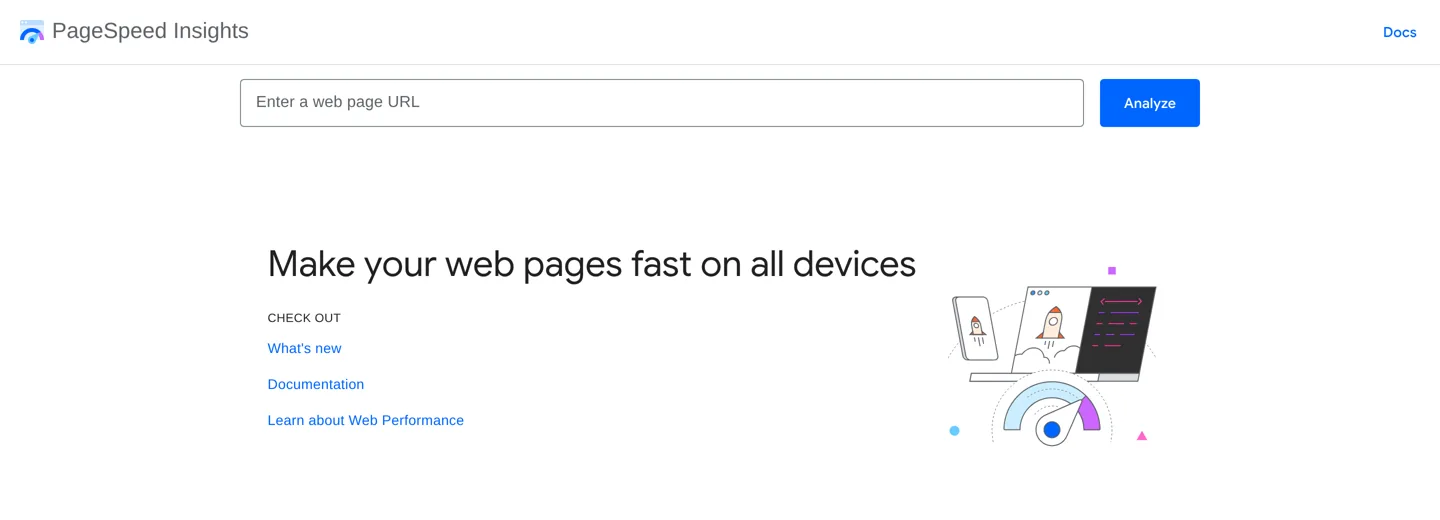
Write down the field values and the lab score for each page you test, with the date. That’s your “before”. Without it you can’t tell which fix helped.
WordPress speed optimization in order of impact
Work down this list and re-test after each step. Change one thing at a time, so that if something breaks you know what caused it.
1. Hosting and PHP version
Every page waits for the server before anything else can happen. On slow or overcrowded hosting, no plugin can fully fix that. Two quick checks:
- PHP version. Go to Tools → Site Health → Info → Server. WordPress.org recommends PHP 8.3 or greater (and MySQL 8.0+ or MariaDB 10.11+). WordPress still runs on PHP 7.4, but WordPress.org notes those older versions have reached end of life. Most hosts let you switch PHP version in the control panel; take a backup first and test the site afterwards.
- Server response. If TTFB in PageSpeed Insights is poor even on a cached page, the server is the bottleneck.
If your host is the problem, moving is often the single biggest speed fix. Our ranking of the best WordPress hosting compares hosts, and the best managed WordPress hosting guide covers hosts such as Kinsta, whose plans list edge caching and CDN bandwidth. When you’re ready, follow our guide to migrating WordPress to a new host without downtime.
2. Page caching (server or plugin)
Without caching, WordPress runs PHP and database queries to build every page for every visitor. A page cache saves the finished HTML and serves that copy instead. WordPress.org’s own optimization guide calls caching the place to start if you need “a quick fix now”. You need exactly one page cache, from one of these sources:
- Your host’s cache. Many managed WordPress hosts cache pages on the server. If yours does, use it and don’t add a caching plugin on top unless the host recommends one.
- LiteSpeed Cache (free) if your host runs a LiteSpeed web server. Its page cache needs a LiteSpeed server (or the QUIC.cloud CDN); its other optimization features, such as image lazy loading, CSS and JS minification and database clean-up, work on any server.
- WP Rocket (paid) on any server. On its pricing page on 12 October 2026, a single-site licence was $59.95 a year (3 sites $119.95, 50 sites $299.95), with a 14-day free trial. It turns on page caching as soon as it’s activated.
- WP Super Cache or W3 Total Cache (free) for a no-cost page cache on Apache or Nginx. WP Super Cache’s “Simple” mode is the one its developers recommend for most people.
After turning caching on, open the site in a private window, check that pages, forms and logged-in areas still work, and re-test in PageSpeed Insights.
3. Images: size, format, lazy loading and dimensions
Images are usually the largest files on a page and often the LCP element itself. Fix them in this order:
- Upload the right size. Don’t upload a 4,000-pixel photo to show it 800 pixels wide. Resize before uploading, and compress: our review of Optimizilla for compressing images covers a free browser tool, and Squoosh and TinyPNG are good alternatives.
- Use modern formats. WordPress has accepted WebP uploads since version 5.8 and AVIF since 6.5 (if your server supports AVIF). WordPress.org’s announcements say WebP images are around 30% smaller on average than JPEG or PNG, and AVIF images can be up to 50% smaller than JPEGs at the same quality. Plugins such as ShortPixel, Imagify or EWWW Image Optimizer can convert and compress your existing library.
- Let WordPress lazy-load. Since WordPress 5.5, images with width and height get
loading="lazy"automatically, so images further down the page load only when needed. Since WordPress 6.3, WordPress also addsfetchpriority="high"to the image it judges most likely to be the LCP image and avoids lazy-loading it. Don’t add a second lazy-load plugin on top unless you’ve turned the built-in one off. - Always set width and height. web.dev’s CLS guide says to include width and height on every image and video (or reserve the space with CSS
aspect-ratio) so the browser keeps room while the image loads. WordPress adds lazy loading only to images that have both attributes, which is one more reason to check images in your theme, page builder and widgets.
4. Fonts
Web fonts block or shift text while they download. Use fewer font files (one family in two weights is plenty for most blogs), host them on your own server or use your theme’s system-font option, and make sure every font has a sensible fallback such as sans-serif. web.dev notes that both “flash of unstyled text” and “invisible text” can cause layout shifts, and that font-display: optional avoids a re-layout because the web font is used only if it’s ready at first layout.
5. CSS and JavaScript (defer, delay and remove)
Every plugin can add its own CSS and JavaScript to every page, even pages that don’t use it. WordPress.org’s optimization guide says deactivating and deleting unnecessary plugins is “a significant way to improve performance”. In order:
- Remove plugins you don’t need. Deactivate one at a time and re-test to find the heavy ones. Our list of the best WordPress plugins keeps to the essentials.
- Defer JavaScript so it doesn’t block the first paint, and delay non-essential scripts (chat widgets, social embeds) until the visitor interacts. WP Rocket (Delay JS) and Perfmatters (defer and delay JavaScript) both offer this, and LiteSpeed Cache can minify and combine CSS and JS.
- Trim unused CSS with WP Rocket’s or Perfmatters’ Remove Unused CSS feature, then check your pages carefully: removing CSS that is actually needed breaks layouts.
- Choose a light theme. A heavy theme or page builder loads a lot of code on every page; see how to choose a theme for your blog.
Heavy JavaScript is also the usual cause of a poor INP, because the browser can’t respond to a tap while it’s busy running scripts.
6. A CDN
A content delivery network (CDN) copies your static files (images, CSS, JavaScript) to servers around the world, so visitors download them from somewhere nearby. WordPress.org’s optimization guide recommends one when your visitors are far from your server. Cloudflare‘s Free plan ($0 a month on its plans page, checked 12 October 2026) includes the CDN, DNS and a Universal SSL certificate; its Pro plan was $20 a month billed annually. Some managed hosts include a CDN already; if you use Kinsta, see how Kinsta and Cloudflare work together before adding your own.
7. Database clean-up
Over the years the database collects post revisions, spam and trashed comments, expired transients and tables left behind by deleted plugins. Clean-up rarely makes a dramatic difference on a small blog, but it helps older sites and makes backups smaller. Take a backup first (see how to back up and restore WordPress), then use your caching plugin’s database tool or a dedicated one. To stop revisions piling up, WordPress’s wp-config.php documentation shows how to keep a fixed number, for example define( 'WP_POST_REVISIONS', 3 );.
8. Third-party scripts: ads, analytics and embeds
Scripts that load from other companies’ servers (ad networks, analytics, heatmaps, chat, social buttons, video embeds) are often the slowest part of a monetised blog, and you can’t cache or compress them. Audit them once a year:
- Keep one analytics tool. If you use Google Analytics, don’t also run two other trackers that answer the same question.
- Lazy-load YouTube and social embeds, or replace them with a preview image that loads the real player on click; Perfmatters, for example, can lazy-load videos and iframes.
- Remove tags for tools you stopped using; old pixels and test scripts are common.
How ads affect CLS (and how to reserve space)
web.dev puts it plainly: “Ads are one of the largest contributors to layout shifts on the web.” An ad slot that starts at zero height and then fills with a 250-pixel banner pushes the article down while someone is reading, and that counts against your CLS. The fix, again from web.dev’s CLS guide, is to reserve the space before the ad arrives:

- Give each ad container a
min-height(or anaspect-ratiofor responsive slots), using media queries if the size differs on phones and desktops. - Size the box for the most likely ad. If you reserve the smallest size, larger ads still shift a little, but far less than an empty container would.
- Don’t collapse the space when no ad is returned. web.dev warns that removing reserved space causes just as much shift as inserting content; show a placeholder instead.
- Avoid ads at the very top of the content that push the first paragraph down; a shift lower on the page affects less of what the reader sees.
If you run Google AdSense Auto ads or a managed network such as Ezoic, check their placement settings and test a post with ads on and off. Our AdSense guide and the Ezoic vs Mediavine comparison cover the ad side; this page only covers the speed side.
What not to do
- Don’t stack caching plugins. WP Rocket’s own documentation lists LiteSpeed Cache, W3 Total Cache and WP Super Cache among the plugins it isn’t compatible with, because they “overlap each other, and cause major conflicts”. One page cache, one minification tool, one lazy-load method.
- Don’t chase a 100 lab score. Lighthouse is a simulation. Passing Core Web Vitals in the field matters more than the last few points.
- Don’t test once and trust it. Lab scores vary between runs; test two or three times and compare like with like.
- Don’t change ten settings at once. If the site breaks, you won’t know which one did it.
- Don’t optimize without a backup. CSS removal, database clean-up and PHP upgrades can all break a site.
- Don’t hide problems from visitors to please a tool, such as removing images readers need. Speed serves the reader, not the score.
Worked example: speeding up a slow blog post
Here’s how I’d work through a typical slow post on a monetised WordPress blog, step by step:
- Run PageSpeed Insights on the post. Note field LCP, INP and CLS (or “no data”) and the lab score.
- Read the lab diagnostics. Say LCP is poor and the LCP element is the featured image, and TTFB is slow: that points to the server and the image.
- Check Site Health for the PHP version and whether a page cache is active. Turn on the host’s cache or one caching plugin.
- Replace the featured image with a correctly sized WebP and make sure it isn’t lazy-loaded.
- Re-test. If CLS is still high, find the shifting elements in the lab report: usually an ad slot or an embed without reserved space. Add a
min-height. - Remove one unused plugin at a time, re-testing as you go.
- Check the field data again after four weeks to confirm real visitors are faster.
WordPress speed checklist
- Test key pages in PageSpeed Insights and save the “before” field values.
- Check the Core Web Vitals report in Search Console for groups of slow URLs.
- Run PHP 8.3 or newer (after a backup).
- Use exactly one page cache: your host’s or one plugin.
- Resize and compress images; use WebP or AVIF.
- Keep WordPress’s built-in lazy loading; don’t lazy-load the LCP image.
- Set width and height on every image, video and embed.
- Use few font files with fallbacks.
- Delete unused plugins; defer or delay non-essential JavaScript.
- Add a CDN if your visitors are spread across countries.
- Clean the database and limit revisions.
- Reserve space for every ad slot.
- Re-test, then confirm in field data after 28 days.
Speed is one part of technical SEO; our WordPress SEO guide covers the rest, and the best WordPress tools for bloggers lists the tools mentioned here in one place. If you’d rather have it done for you, my agency, A Digital Motive, handles WordPress performance work.
Questions people ask
What is a good PageSpeed Insights score for WordPress?
In the lab report, 90 or above is good, 50 to 89 needs improvement and below 50 is poor. What matters more is passing Core Web Vitals in the field data: LCP 2.5 seconds or less, INP 200 ms or less and CLS 0.1 or less.
Why is my field data different from my lab score?
Field data comes from real Chrome visitors over 28 days on many devices and networks; lab data is one simulated load on a mid-tier phone. Lab tests also miss layout shifts that happen after the page loads, such as late ads.
Do I need a caching plugin if my host has caching?
Usually not. If your host caches pages on the server, use that and add a plugin only if the host recommends one. Two page caches on one site often conflict.
Which caching plugin is best for WordPress?
It depends on your server. LiteSpeed Cache is free and best on LiteSpeed servers; WP Rocket is paid and works on any server; WP Super Cache and W3 Total Cache are free options for Apache and Nginx. Use only one.
Do ads slow down WordPress?
They can. Ad scripts load from other servers and can't be cached by you, and ad slots without reserved space cause layout shifts. Give each slot a min-height and keep the number of ad and tracking scripts down.
How long until speed fixes show in Google Search Console?
Field data covers the previous 28 days, so expect up to four weeks before the Core Web Vitals report fully reflects a fix.
Sources
- Web Vitals (web.dev) web.dev · checked October 12, 2026
- About PageSpeed Insights (Google for Developers) developers.google.com · checked October 12, 2026
- Optimize Cumulative Layout Shift (web.dev) web.dev · checked October 12, 2026
- Optimization (WordPress Advanced Administration Handbook) developer.wordpress.org · checked October 12, 2026
- WordPress requirements wordpress.org · checked October 12, 2026
- Lazy-loading images in 5.5 (Make WordPress Core) make.wordpress.org · checked October 12, 2026
- Image performance enhancements in WordPress 6.3 (Make WordPress Core) make.wordpress.org · checked October 12, 2026
- WordPress 5.8 adds WebP support (Make WordPress Core) make.wordpress.org · checked October 12, 2026
- WordPress 6.5 adds AVIF support (Make WordPress Core) make.wordpress.org · checked October 12, 2026
- WP Rocket pricing wp-rocket.me · checked October 12, 2026
- Optimization plugins not compatible with WP Rocket docs.wp-rocket.me · checked October 12, 2026
- LiteSpeed Cache (WordPress.org) wordpress.org · checked October 12, 2026
- Cloudflare plans www.cloudflare.com · checked October 12, 2026

Building websites since 2006: 500+ web projects of every size and $300K+ in website deals sold or brokered. Founder of A Digital Motive and DigiFlippers. I share the whole process here, plainly.
Founder of A Digital Motive and DigiFlippers