- Branded /go/ links let you change a destination once for every post.
- Mark every affiliate link and button rel="sponsored"; Rank Math can do it by prefix.
- WordPress's Button block has a Link relation field for rel values.
- A synced pattern keeps one disclosure up to date across all posts.
- Check top posts' links monthly; broken buttons lose sales.
Affiliate marketing with WordPress comes down to five pieces of setup: branded links you can update in one place, a rel="sponsored" label on every affiliate link, a disclosure that appears automatically near your links, a clear site structure, and a way to track clicks and catch broken links. This guide shows how to set up each one, using WordPress’s own features and the plugins that handle affiliate links, with details from their official pages and WordPress.org, checked on 12 October 2026.
New to affiliate marketing? Start with our guide on how to start affiliate marketing. Choosing a theme? See WordPress themes for affiliate sites. This page is the WordPress setup.

Why WordPress suits affiliate sites
On self-hosted WordPress you own the site, so you decide which links, plugins and ads appear, and you can add the tools affiliate sites need. The block editor lets you build reusable pieces such as a disclosure line or a “check price” button, and plugins add link management, redirects and click tracking. The setup below works with any well-coded theme. Affiliate income also sits well alongside the other ways to earn money from a blog, such as display ads.
Affiliate marketing with WordPress: the setup, step by step
Step 1: Use branded links you can change in one place
Affiliate links are long and change: a programme moves networks, a product is renamed, a deal ends. If the raw link sits in fifty posts, you edit fifty posts. A link manager gives each affiliate link a short address on your own domain, such as yoursite.com/go/product/, that redirects to the real link. Change the destination once and every post follows.
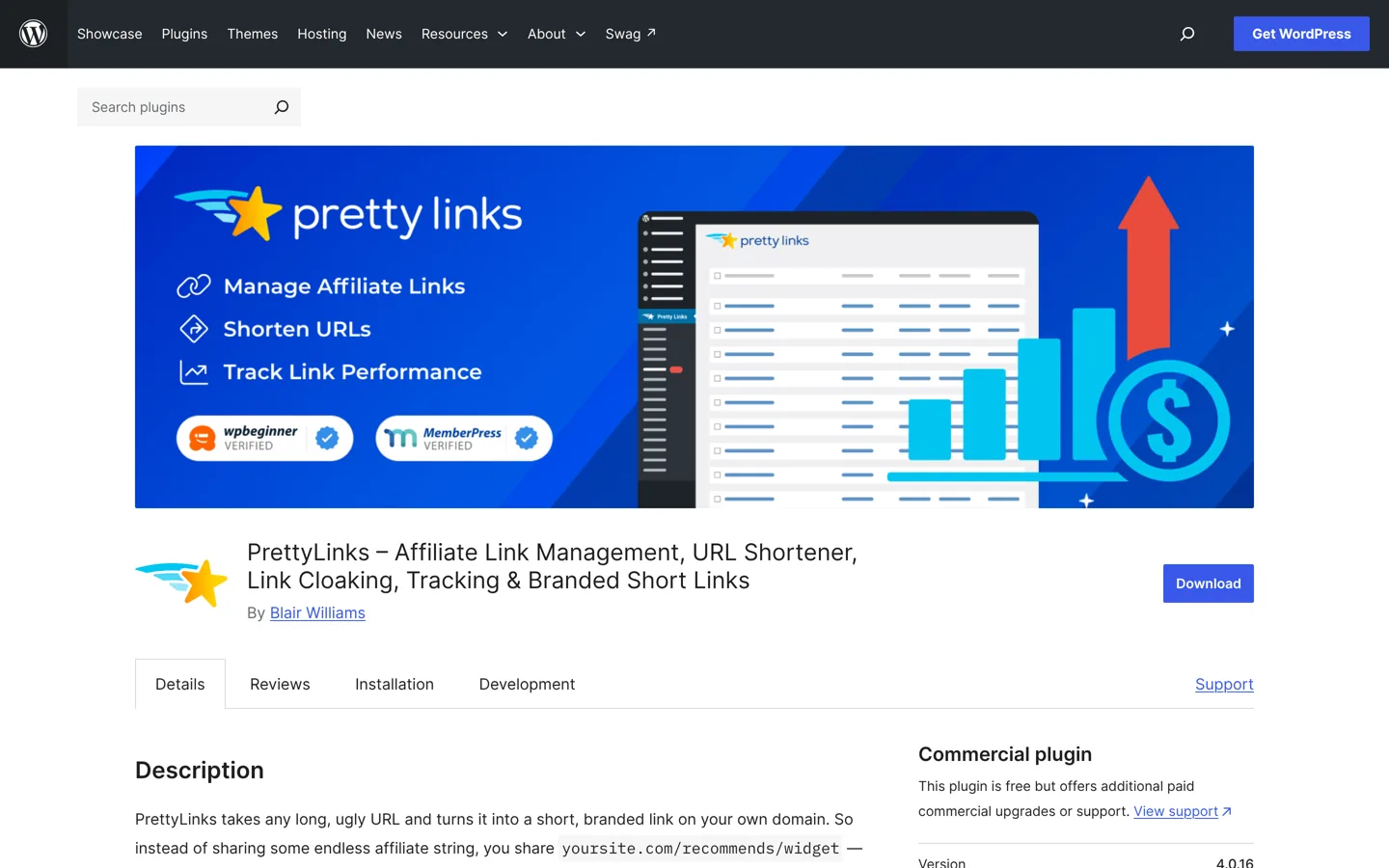
- Pretty Links (200,000+ active installs on WordPress.org, rated 4.8) turns long links into branded short links. Its free version lists 301, 302 and 307 redirects per link, click and unique-click tracking, bot filtering, privacy controls and CSV import and export. Pro adds keyword replacements, link categories and tags, scheduled link health scans and advanced redirect types.
- ThirstyAffiliates (30,000+ installs, rated 4.6) creates a branded redirect for each affiliate link, offers 301 (the default), 302 or 307 redirects, and groups links into categories. Its Pro version adds an automatic link health checker.
- Rank Math, if you already use it for SEO, can do the job with its Redirections module: Rank Math’s guide to affiliate links shows adding a redirect with a prefix such as
/go/and filing it in an “Affiliate Links” category.
Pick one tool and use one prefix (such as /go/) for every affiliate link. It keeps links consistent and makes the next two steps easier.
Step 2: Mark every affiliate link as sponsored
Google asks that links which are advertisements or paid placements carry rel="sponsored", and affiliate links fall into that group. In WordPress you can add it in three ways:
- Automatically for a prefix: Rank Math’s guide explains that under Rank Math SEO → General Settings → Links → Affiliate Link Prefix you enter your prefix (for example
/go/), and links starting with it are tagged as sponsored. - Link by link in the editor: Rank Math’s link controls add “Set to Sponsored” and “Set to Nofollow” options when you edit a link in the block editor.
- On buttons, without a plugin: WordPress’s Button block has a Link relation field in its Advanced settings, where you can type
sponsored. For a text link, choose Edit as HTML on the block and addrel="sponsored"to the link.
Check your link manager’s settings too: some can add the attribute to every link they create.
Step 3: Show a disclosure automatically
Readers should see that you may earn from a link before they click it, and some programmes require specific wording. Rather than typing it into every post, make it once as a synced pattern. WordPress’s documentation explains that editing a synced pattern updates it everywhere it’s used:
- Write the disclosure in a paragraph block, for example: “Some links in this post are affiliate links. If you buy through them I may earn a commission, at no extra cost to you.”
- Select the block, open its three-dot menu and choose Create pattern.
- Name it, turn on Synced and click Create.
- In each affiliate post, type
/followed by the pattern’s name to insert it near the top, before the first affiliate link.
Link the disclosure to a full disclosure page that explains how you choose products and earn. If you join Amazon Associates, include its required sentence; our affiliate themes guide covers the wording.

Step 4: Organise the site around reader decisions
- Categories by topic, not by post type: “Hosting”, “Email tools”, “Cameras”. Each category page then gathers the guides, reviews and comparisons for one decision.
- Consistent post types: single reviews, “best for” lists, comparisons of two products and how-to guides. Make one layout for each and reuse it.
- Internal links from guides to the matching review and list, so readers who are ready to choose find them.
- An About page saying who writes the site and how products are chosen, linked from your disclosure.
Step 5: Track clicks and catch broken links
Each programme’s dashboard reports sales, but only your site knows which post sent the click. Pretty Links’ free version logs every click with its referrer and offers click reports by date and link; ThirstyAffiliates lists a Google Analytics integration. Compare clicks per post with each programme’s sales to see which pages earn.
Links break when programmes close or products move. Check your affiliate links regularly: Pretty Links Pro and ThirstyAffiliates Pro include scheduled link health checks, and Broken Link Checker (500,000+ installs) scans a site’s links. Fix or replace dead links quickly; a broken “check price” button loses the sale and frustrates the reader.
Make affiliate buttons people notice
A “check price” or “see plans” button gets more clicks than a plain text link at the moment a reader decides. Build it with WordPress’s Buttons block, style it once in your brand colour, and save it as a synced pattern too if the wording is always the same. Put the branded link in the button’s link field and sponsored in its Link relation field. Keep the label honest about where it goes: “See prices on the official site” sets the right expectation; “Download now” on a link to a sales page doesn’t. Use one button per product near your verdict rather than a button after every paragraph.
Readers in other countries
If many readers live outside the country your programme covers, a single store link may not earn from them. Some programmes, Amazon’s among them, run separate stores by country. A localised link service can send each reader to their own store; our guide to what geni.us is explains how it works. Put the localised link inside your link manager, so you still change it in one place.
Which redirect type to choose
Link managers let you pick the redirect type. A 301 is a permanent redirect, which browsers can remember; 302 and 307 are temporary. Affiliate destinations do change, so many site owners prefer a temporary redirect, which makes sure every click checks the current destination. Whichever you choose, use it consistently, and test a link in a private window after you change where it points.
Keep affiliate links out of search results
Your /go/ addresses are redirects, not pages, so they shouldn’t appear in search. Marking the links that point to them as sponsored, as in step 2, tells Google they’re paid links. Don’t add them to your sitemap, and keep them out of menus and widgets that appear on every page unless they’re clearly labelled.
Speed and plugins: keep it lean
Every plugin adds code to maintain. Use one link manager, one SEO plugin and as few extras as your site needs. Product boxes and comparison tables are best built with blocks or a dedicated plugin rather than locked into a theme, so they survive a theme change. After adding any plugin, test a few pages on a phone to make sure they still load quickly.
Common setup mistakes
- Pasting raw affiliate links into posts. You’ll have to find and edit every one when a link changes.
- Forgetting
rel="sponsored"on buttons and links added outside your link manager. - A disclosure only in the footer, where readers don’t see it before clicking.
- Two tools doing the same job, such as two link managers or two plugins adding link attributes, which can conflict.
- Never testing links. Click your top posts’ links every month, in a private window, and on a phone as well as a computer.
Your WordPress affiliate setup checklist
- One link manager installed, with one prefix for every affiliate link.
- Every affiliate link and button carries
rel="sponsored". - A synced disclosure pattern near the top of each affiliate post, linked to a full disclosure page.
- Categories organised by reader decision, with internal links from guides to reviews.
- Click tracking on, and a monthly check of links in your top posts.
- An About page that says who you are and how you choose products.
Questions people ask
Do I need a plugin for affiliate links in WordPress?
Not strictly, but a link manager such as Pretty Links or ThirstyAffiliates lets you change a link in one place, track clicks and keep links consistent. Rank Math's Redirections module can do the same if you use it.
How do I add rel="sponsored" in WordPress?
Rank Math adds a 'Set to Sponsored' option to the link editor and can tag every link with your affiliate prefix. Without a plugin, use the Button block's Link relation field or Edit as HTML on the block.
Where should the affiliate disclosure go?
Near the top of the post, before the first affiliate link, linked to a full disclosure page. A synced pattern lets you insert and update it everywhere.
Should affiliate redirects be 301 or 302?
Both work. A 301 is permanent and can be remembered by browsers; 302 and 307 are temporary, so every click checks the current destination. Choose one and use it consistently.
Is Pretty Links free?
Yes, its free version on WordPress.org includes branded links, 301/302/307 redirects, click tracking and CSV import. Pro adds keyword replacements, categories, link health scans and more redirect types.
Does WordPress.com allow affiliate links?
This guide covers self-hosted WordPress, where you install plugins yourself. Check WordPress.com's current plan terms if you use it.
Sources
- PrettyLinks on WordPress.org wordpress.org · checked October 12, 2026
- ThirstyAffiliates on WordPress.org wordpress.org · checked October 12, 2026
- How to Manage Affiliate Links Using Rank Math rankmath.com · checked October 12, 2026
- Using Link Controls in Rank Math rankmath.com · checked October 12, 2026
- Buttons block (WordPress documentation) wordpress.org · checked October 12, 2026
- Synced Patterns (WordPress documentation) wordpress.org · checked October 12, 2026
- Qualify your outbound links to Google developers.google.com · checked October 12, 2026
- Broken Link Checker on WordPress.org wordpress.org · checked October 12, 2026

Building websites since 2006: 500+ web projects of every size and $300K+ in website deals sold or brokered. Founder of A Digital Motive and DigiFlippers. I share the whole process here, plainly.
Founder of A Digital Motive and DigiFlippers